How To Edit a Treatment Plan

Article author: Bright Ark Article published at: May 15, 2026


Model Preprocessing

The Model Preprocessing node lets you remove attachments, repair the model, and calibrate the model.
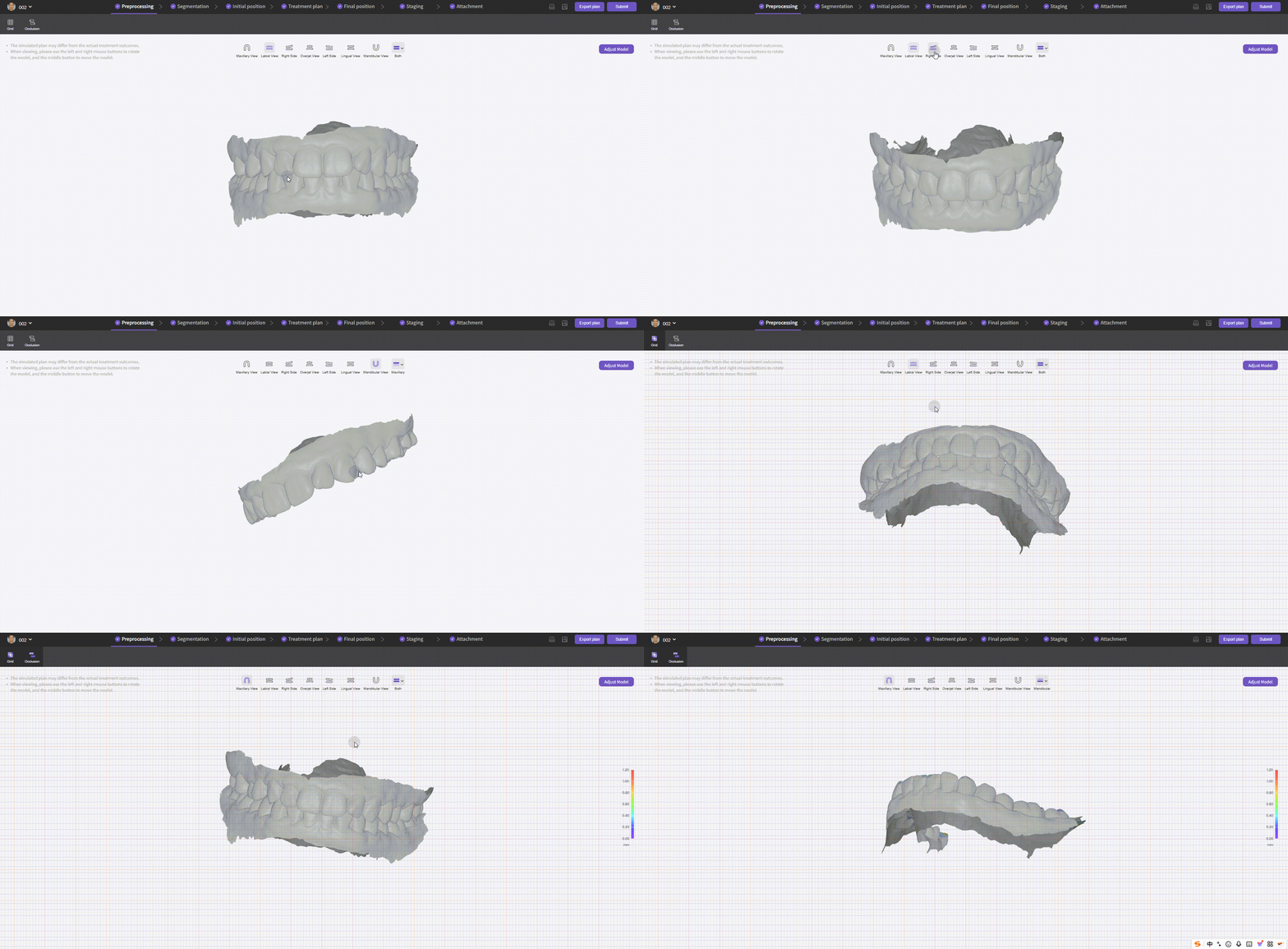
  • Views: during preprocessing you can rotate the model by dragging with the mouse, pan by pressing the middle mouse button, and switch views via the view buttons. Auxiliary view tools such as Grid and Occlusal Collision are provided.

Model Preprocessing - Views

Model Preprocessing - Views

  • Adjustments: in the top‑right Adjust Model panel you can remove attachments, repair, and calibrate the model.

STEP1 - Remove Attachments: attachment locations are auto-detected, and you may also manually select areas, then click Confirm Remove Attachments.
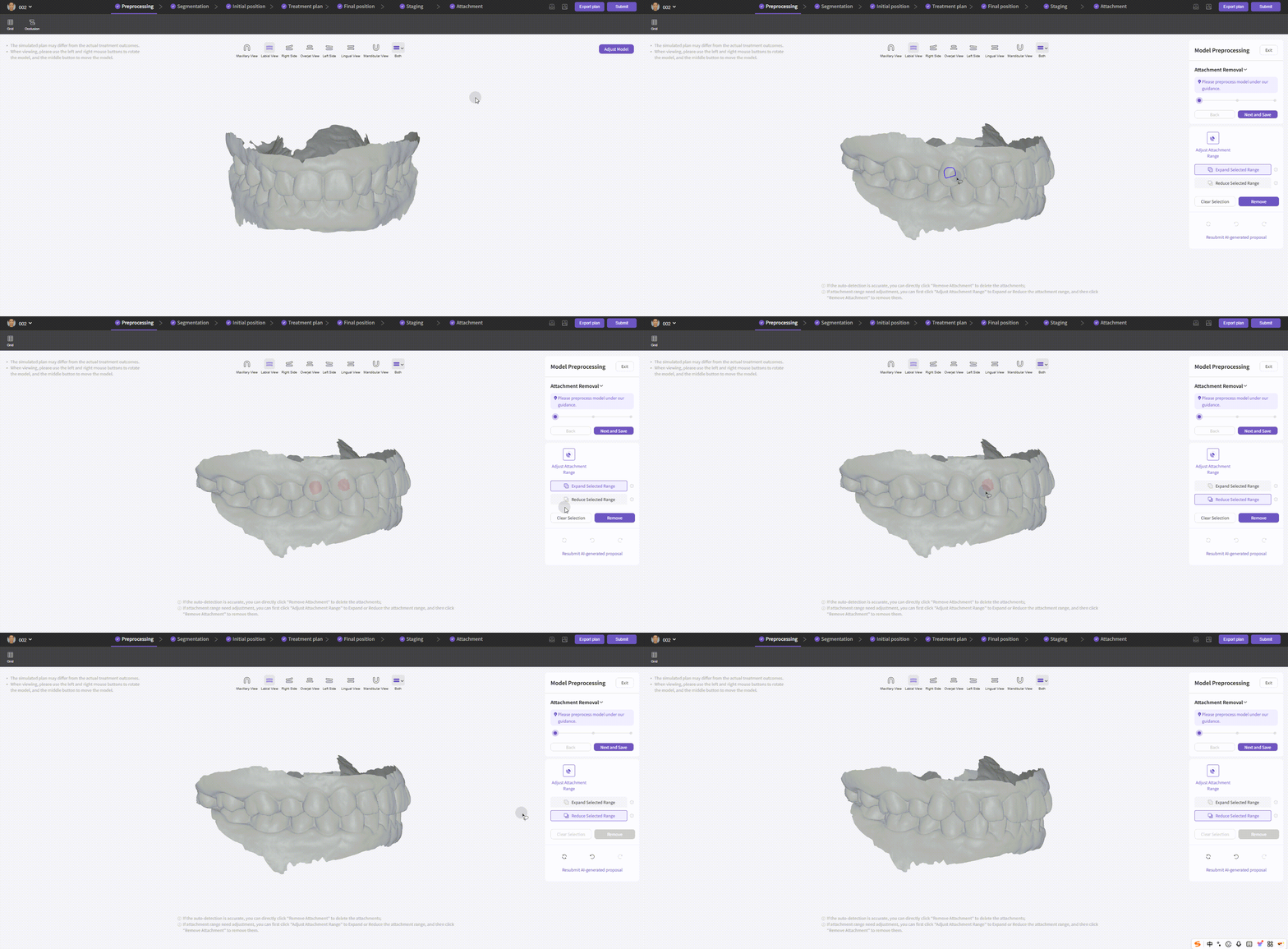
Model Preprocessing - Remove Attachments

Model Preprocessing - Remove Attachments

STEP2 - Model Repair: locally raise, lower, fill, smooth, trim, and fill holes on the model.
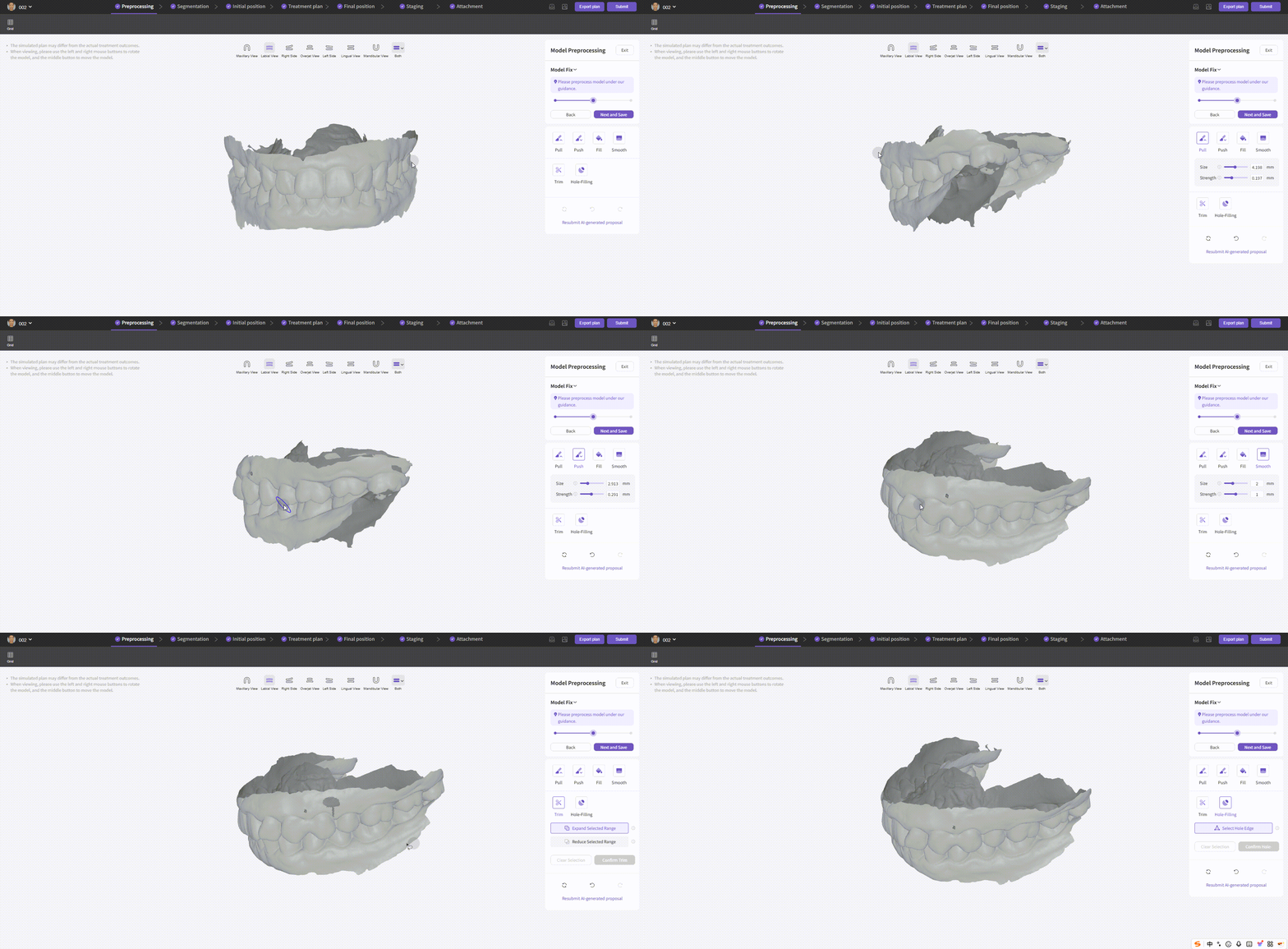
Model Preprocessing - Repair

Model Preprocessing - Repair

STEP3 - Model Calibration: adjust occlusal plane angles and occlusion for the whole arch or mandible only. Model Preprocessing - Calibration
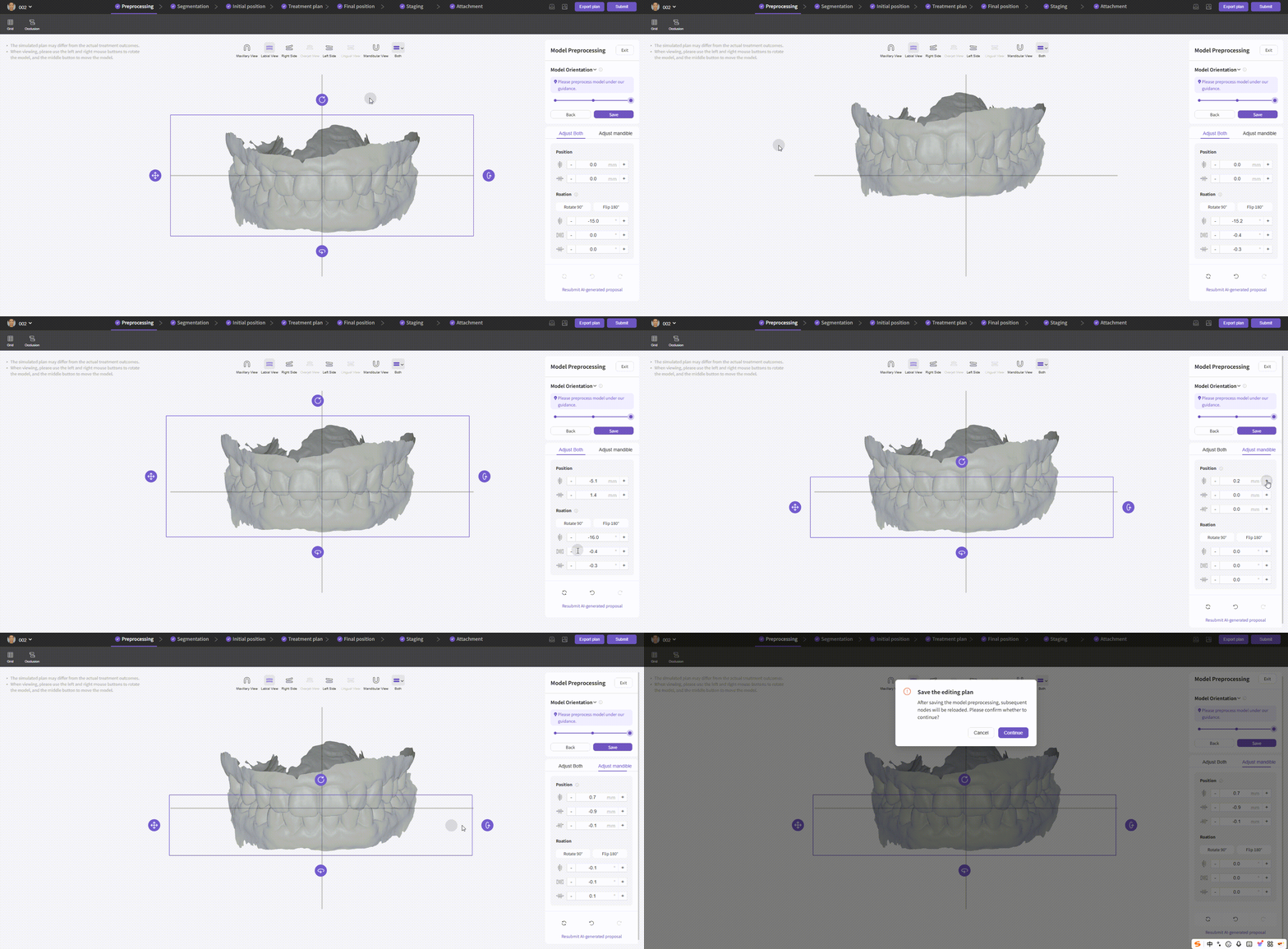
Model Preprocessing - Calibration


Segmentation

The Segmentation node helps you segment teeth and adjust tooth numbers.
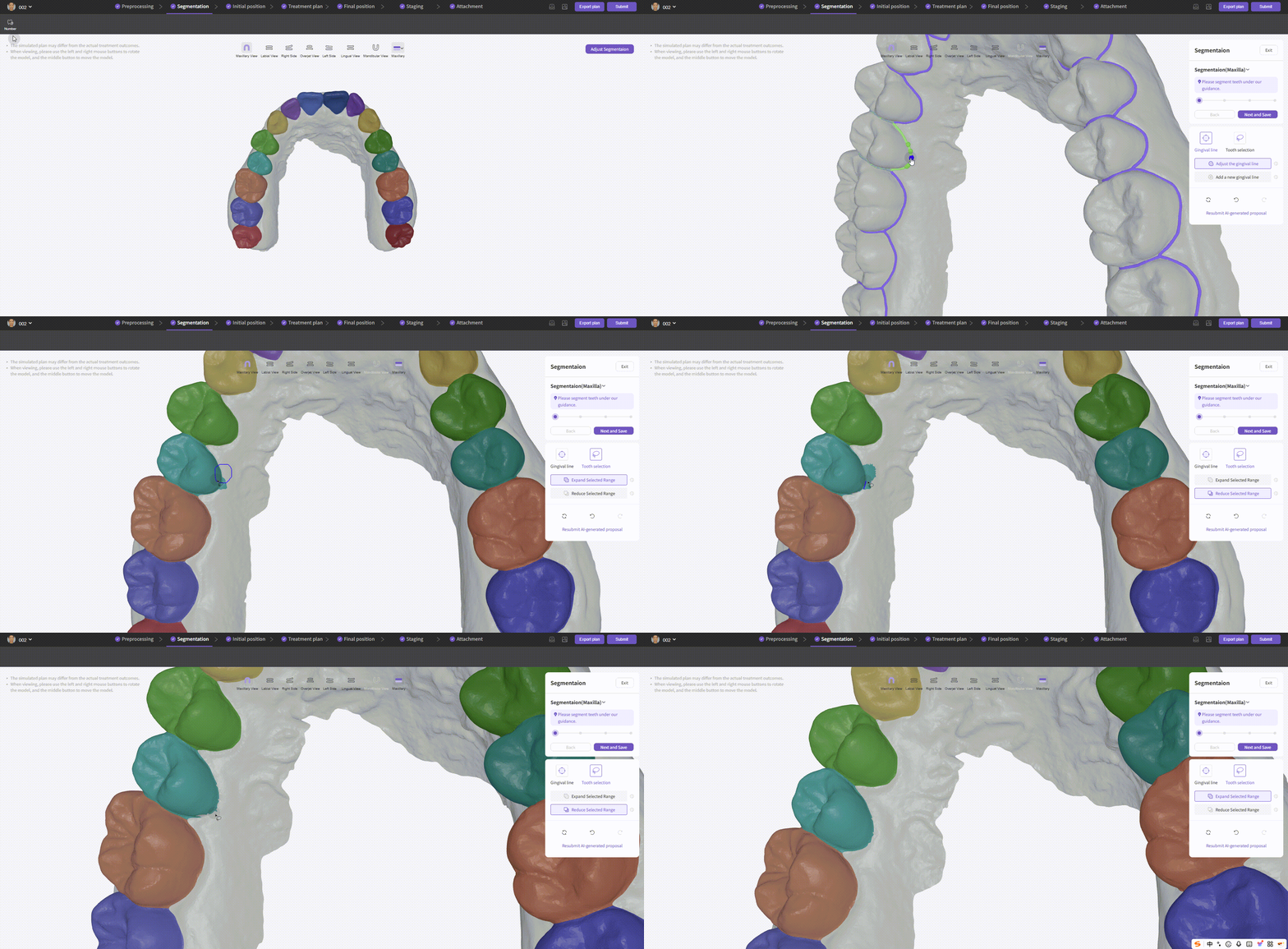
  • Views: the top-left Tooth Numbers control toggles tooth number display. In segmentation, the top-right Adjust Segmentation offers two adjustment modes: move key points on the gingival line, or reselect teeth by lasso.

Segmentation

Segmentation


Initial Position Model

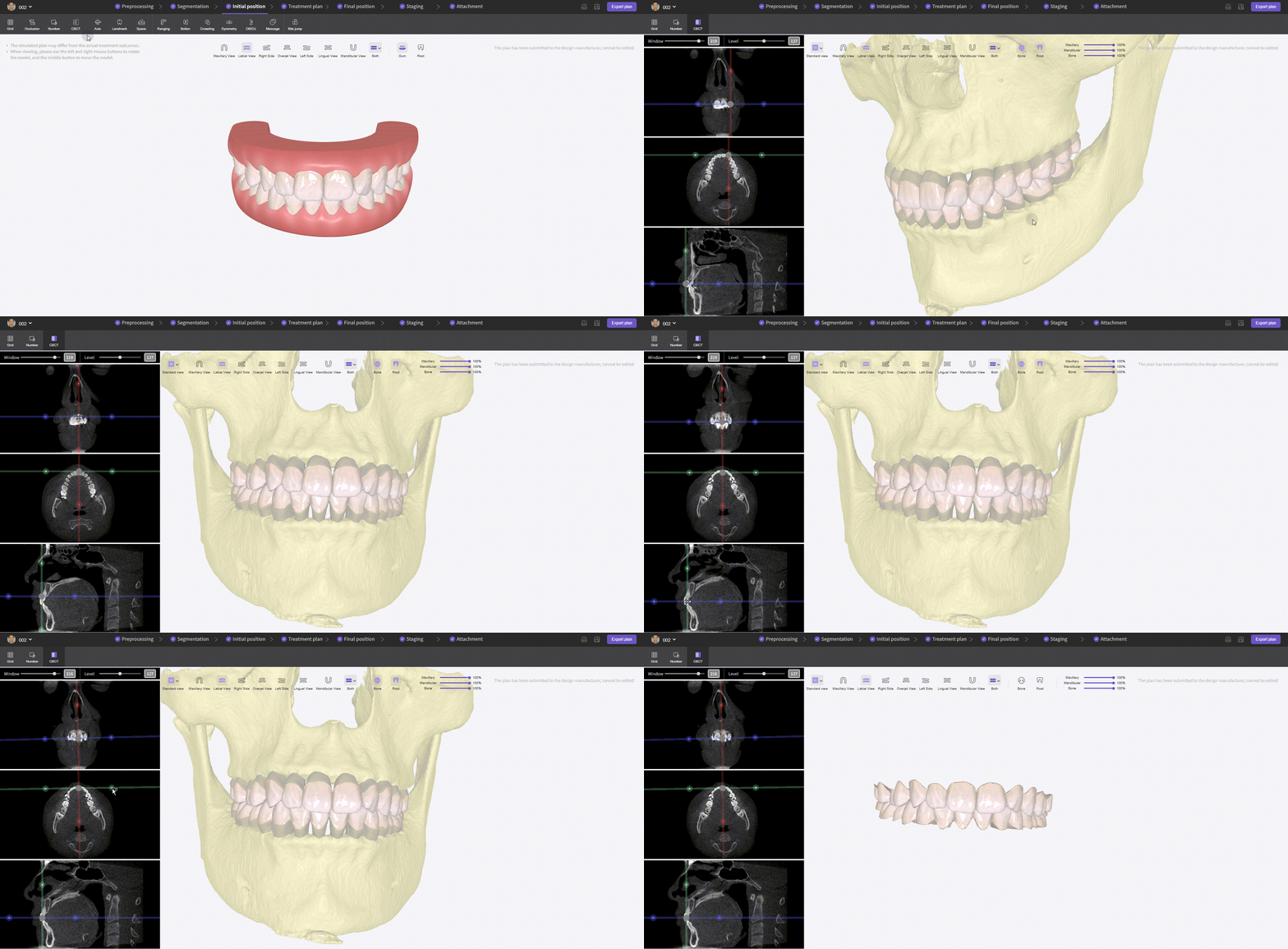
The Initial Position node helps you adjust tooth axes and landmarks and offers tools such as Crown-Root View, Distance Measurement, Bolton, Crowding, Symmetry, Overbite/Overjet analysis and Bite-jumping editing.
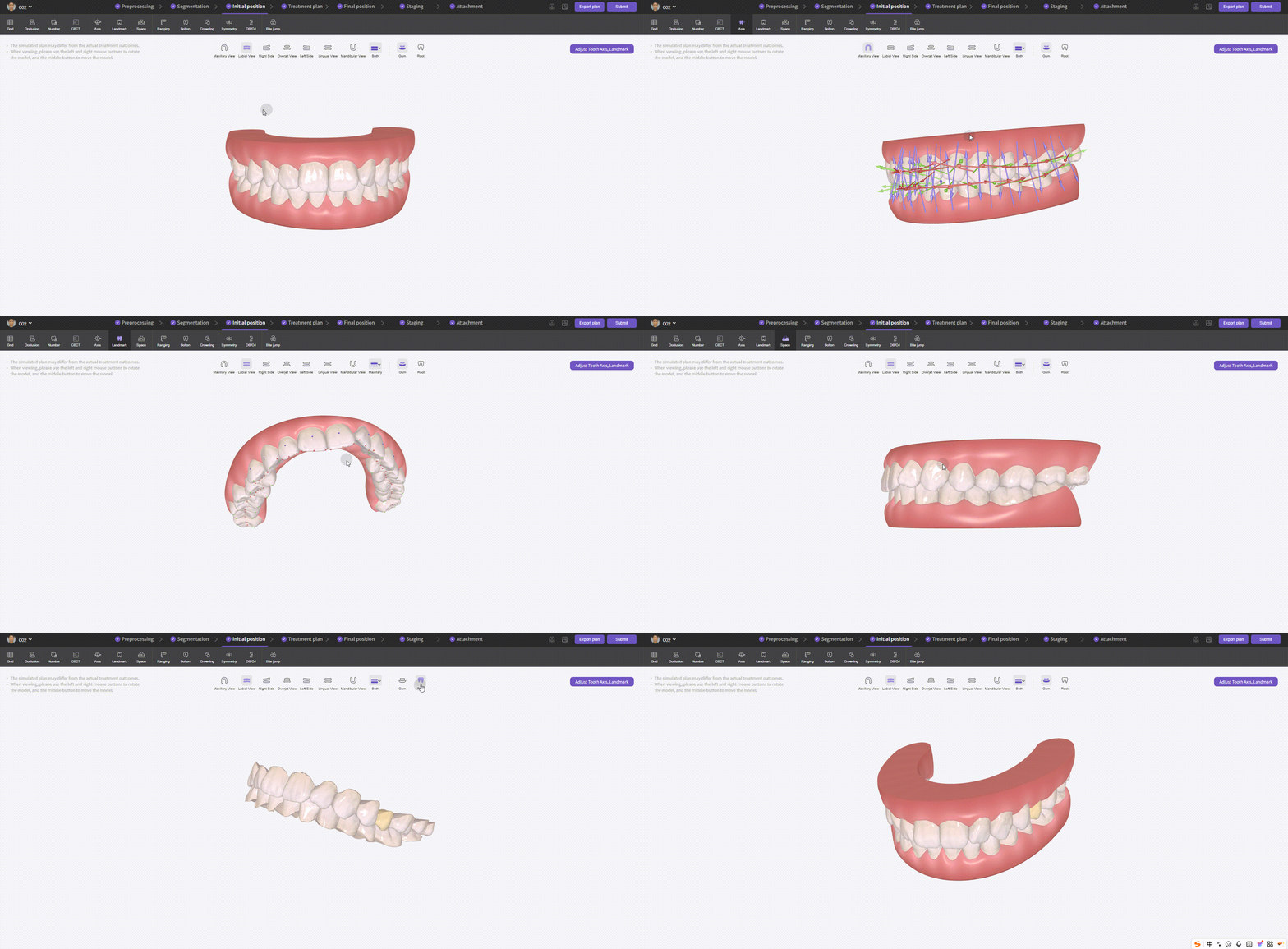
  • Provides Root and Gingiva views, plus auxiliary tools for Tooth Axis, Tooth Landmarks, and Adjacent Gaps.

Initial Position - Views

Initial Position - Views

Initial Position - Crown-Root View
Initial Position - Crown-Root View

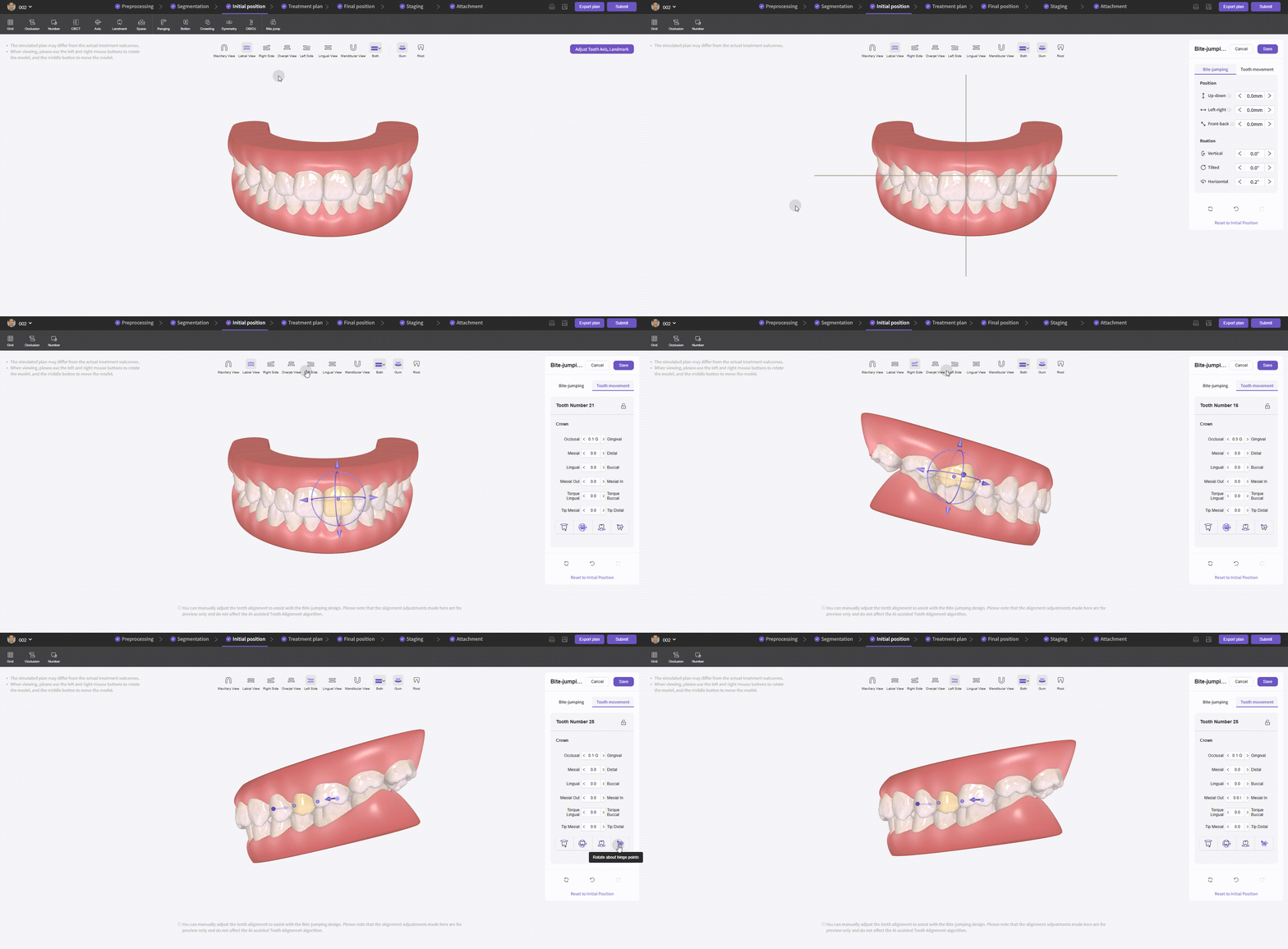
  • Bite-jumping editor: adjust position and occlusal relationship for the mandible or individual teeth.

Initial Position - Bite-jumping

Initial Position - Bite-jumping

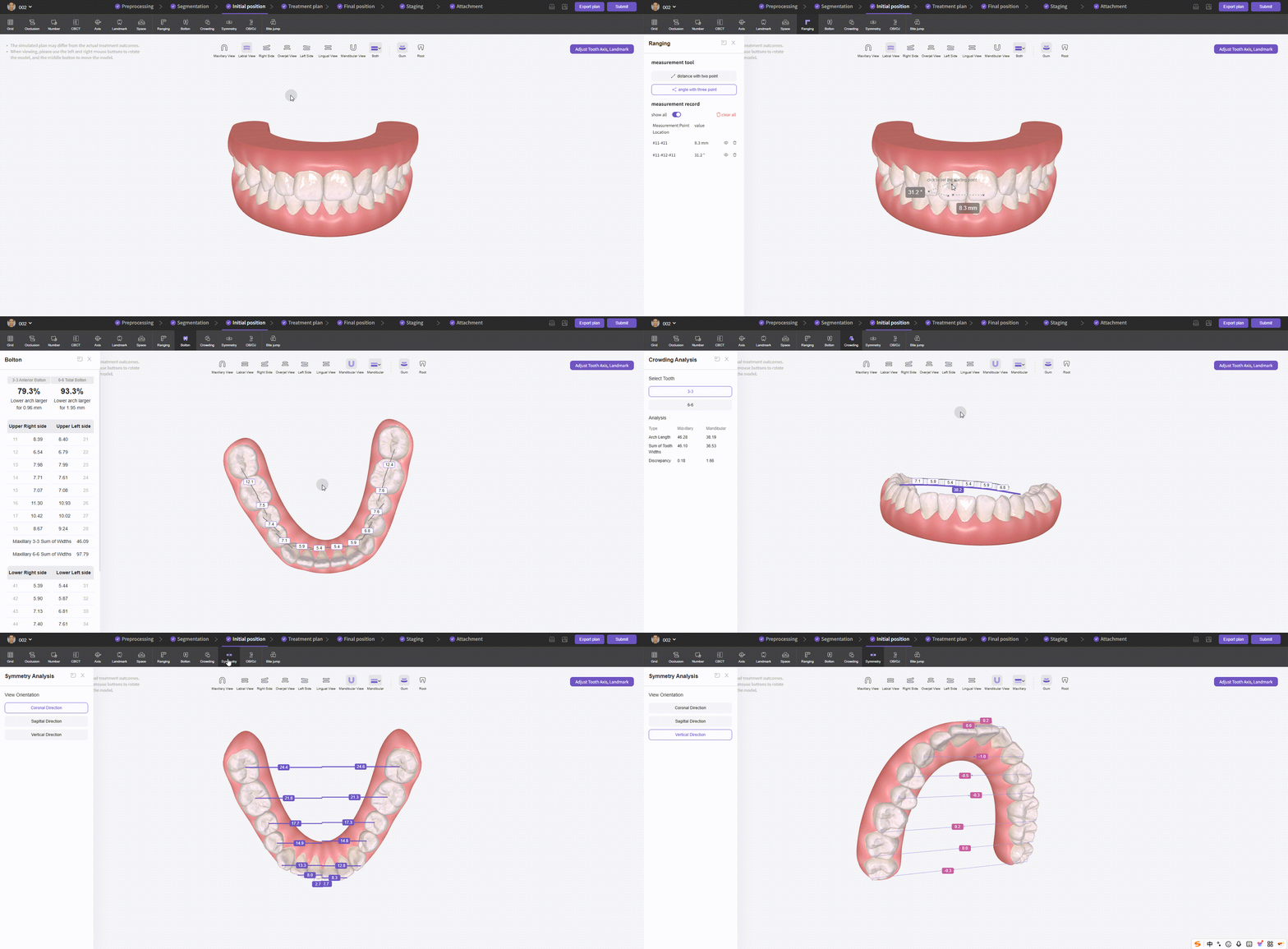
  • Analysis tools: Distance Measurement, Three-View, Bolton, Crowding, Symmetry, Overjet/Overbite.

Initial Position - Analysis Tools

Initial Position - Analysis Tools

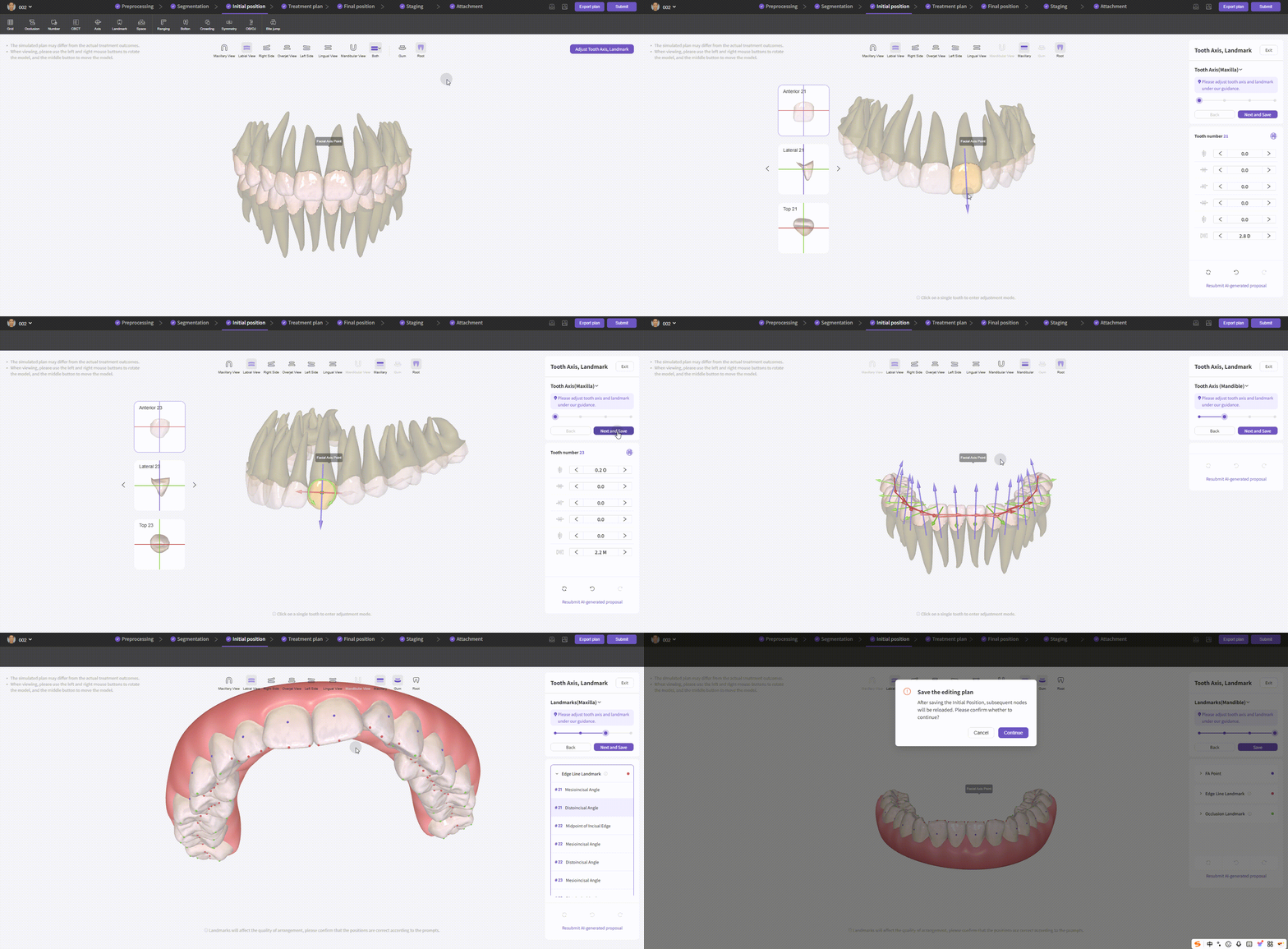
  • Adjustments: click Adjust Tooth Axes & Landmarks (top-right) and follow prompts to adjust maxillary and mandibular tooth axes and landmarks. You can drag controls on selected teeth or edit numeric fields.

Initial Position - Adjust

Initial Position - Adjust


Treatment Plan

The Treatment Plan node contains AI-generated treatment proposals and supports manual edits; changes will affect downstream nodes. It includes Basic Treatment Plan and Expected Treatment Outcome.
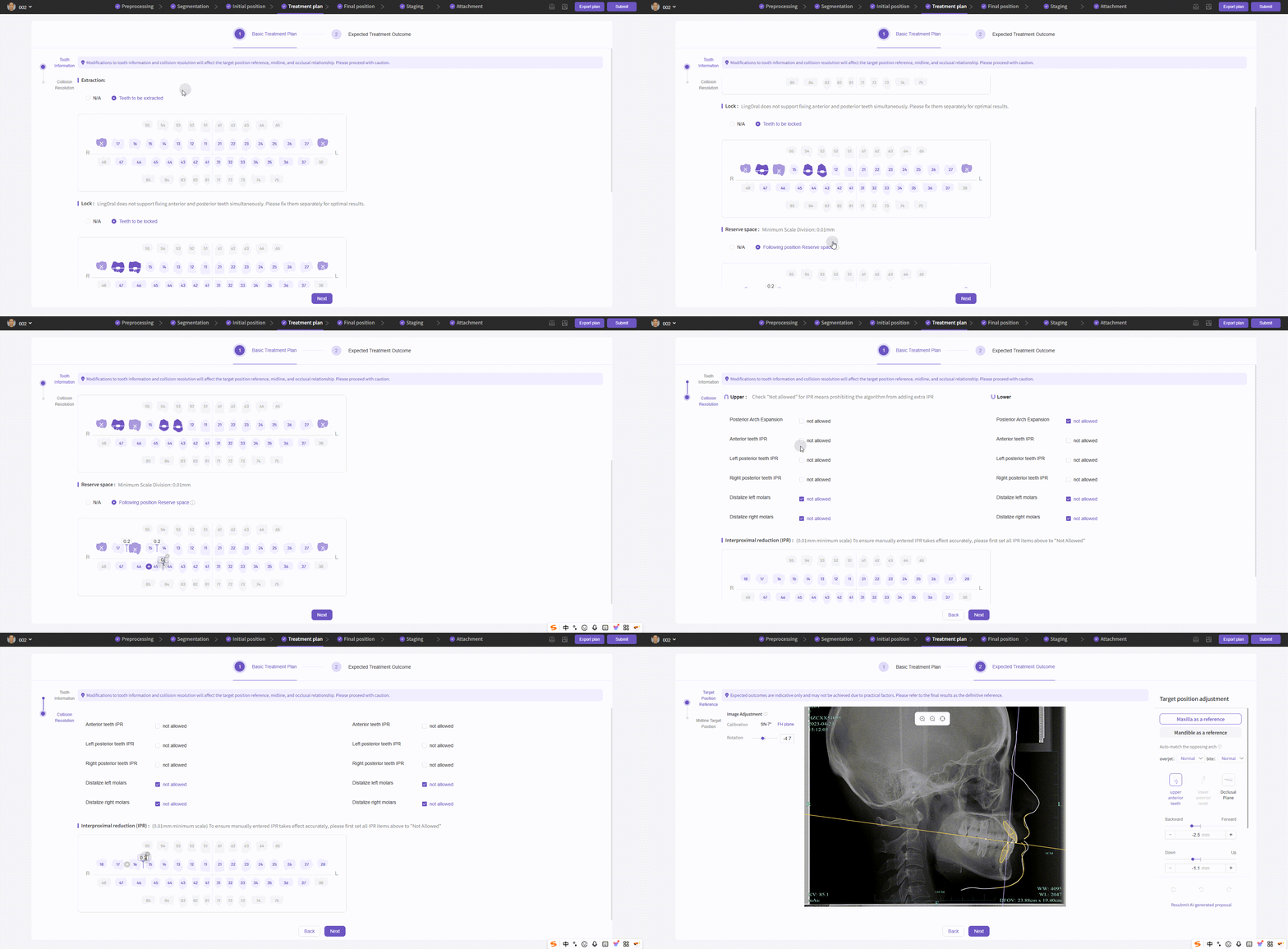
  • Basic Treatment Plan  Tooth Information: includes Extractions, Locked Teeth, and Reserved Space.
  • Basic Treatment Plan  Collision Resolution: includes Release Upper and Interproximal Reduction (IPR).

Treatment Plan - Basic

Treatment Plan - Basic

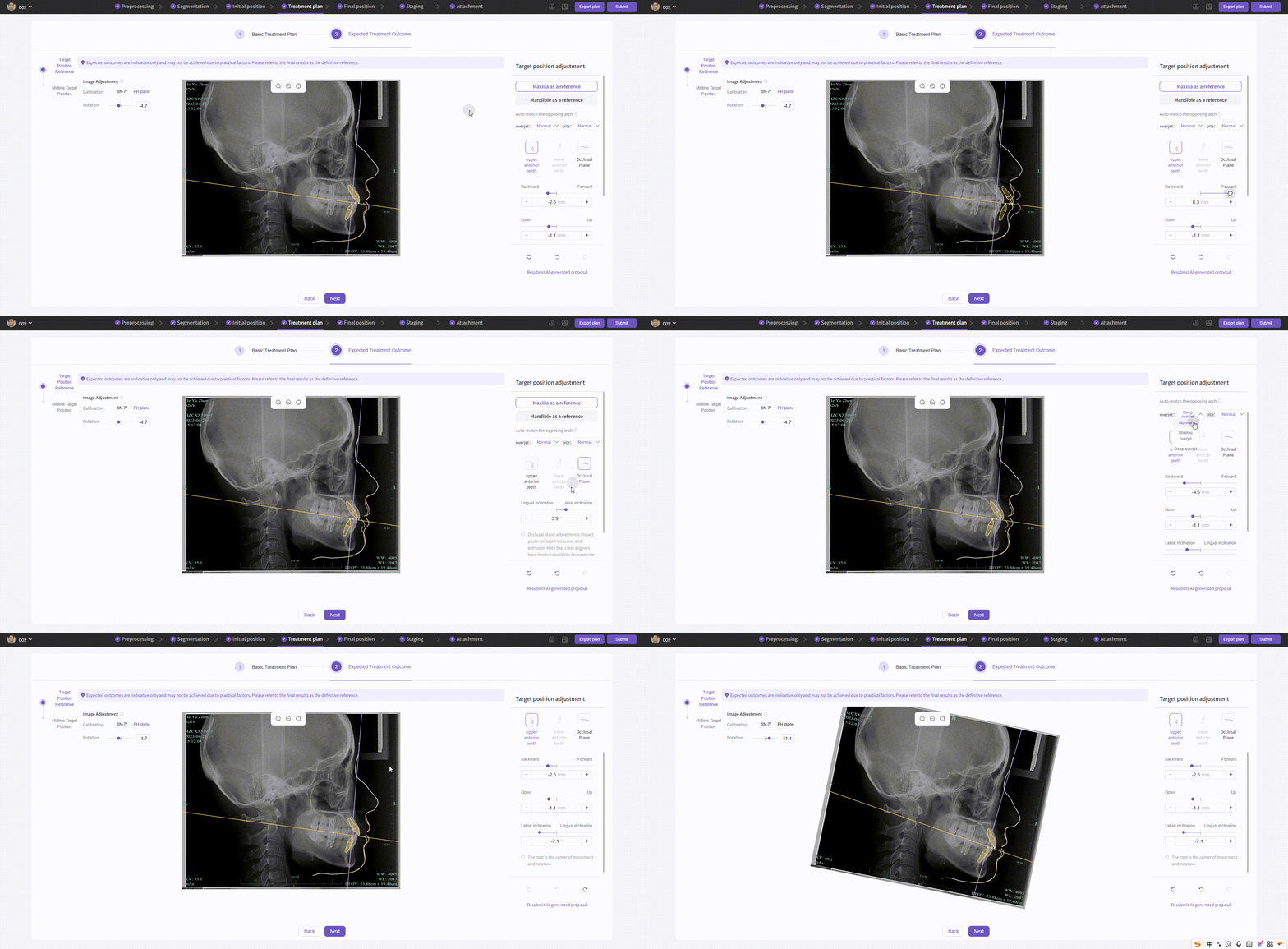
  • Expected Treatment Outcome  Target Position Reference: used to adjust sagittal & vertical target references. The AI tooth-arrangement algorithm aligns the full dentition based on anterior tooth positions.
  • Expected Treatment Outcome  Midline Target Position: used to adjust midline reference.

Treatment Plan - Expected Outcome

Treatment Plan - Expected Outcome


Final Position

The Final Position node helps you view, analyze, and adjust AI tooth-arrangement results.
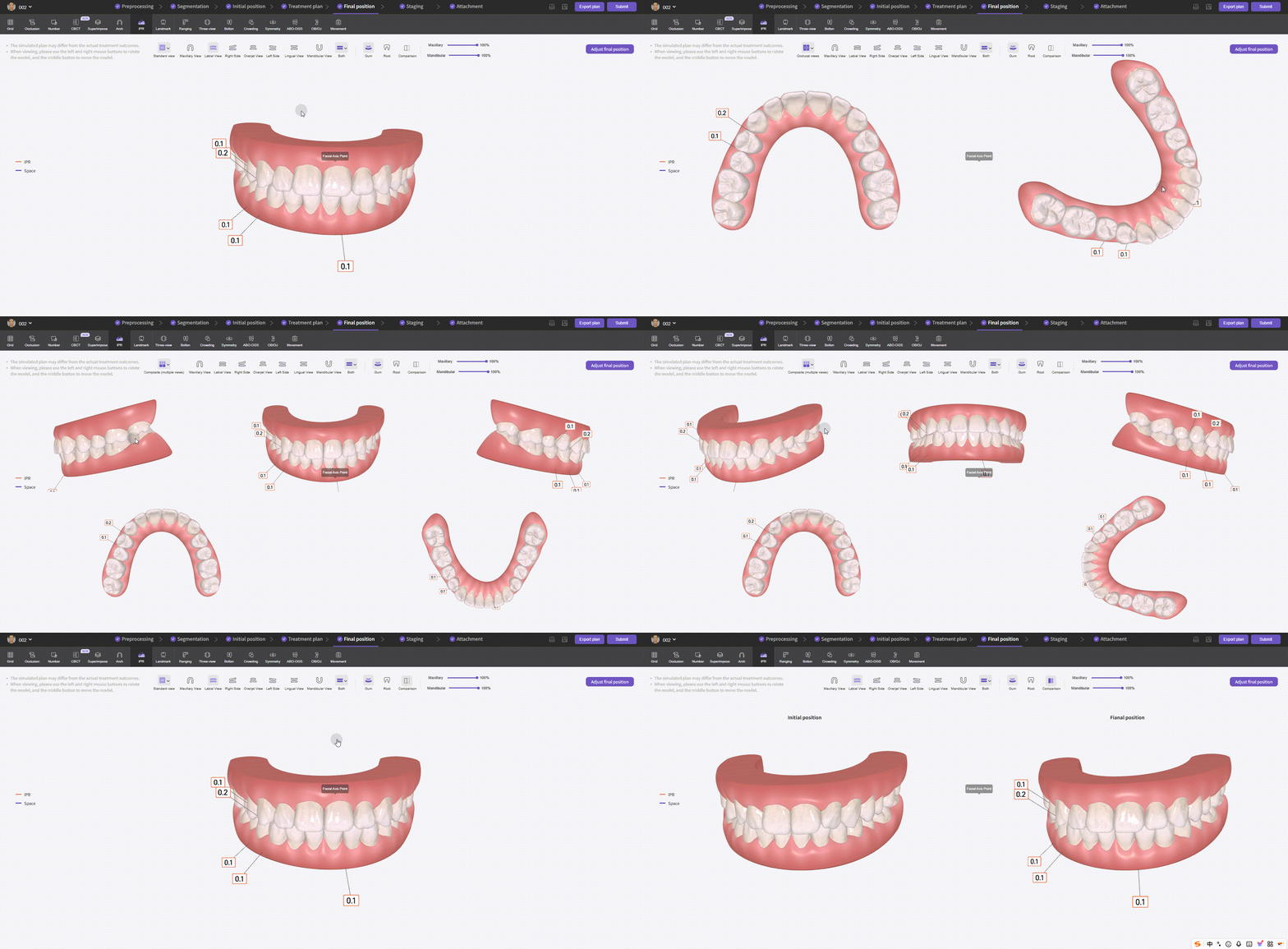
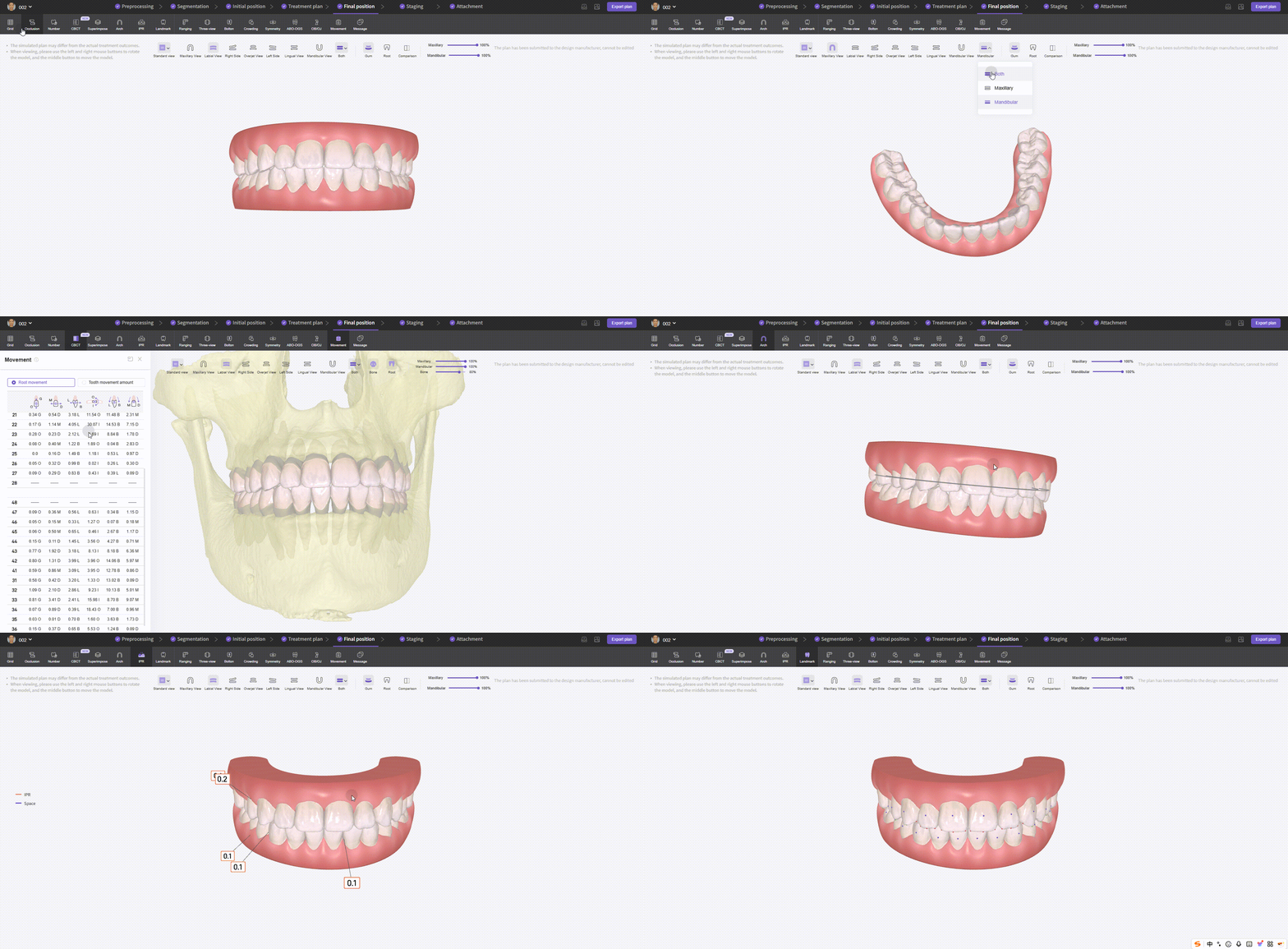
  • Views: new Occlusal View, Composite View, and Comparison View.

Final Position - Views

Final Position - Views

  • Auxiliary view tools: Grid, Occlusal Collision, Tooth Numbers, Crown-Root View, Superimpose, Arch Curve, IPR, Tooth Landmarks.

Final Position - Aux Tools

Final Position - Auxiliary Tools

  • Analysis tools: Distance Measurement, Three Views, Bolton, Crowding, Symmetry, ABO-OGS, Overjet/Overbite, Movement Scale. When viewing Crown-Root View together with Movement Scale, you can inspect root and crown movement separately.

If you modified the model in Model Preprocessing, Segmentation, or Initial Position, please click Reanalyze at the bottom of the page; otherwise the crown-root view will not update automatically.
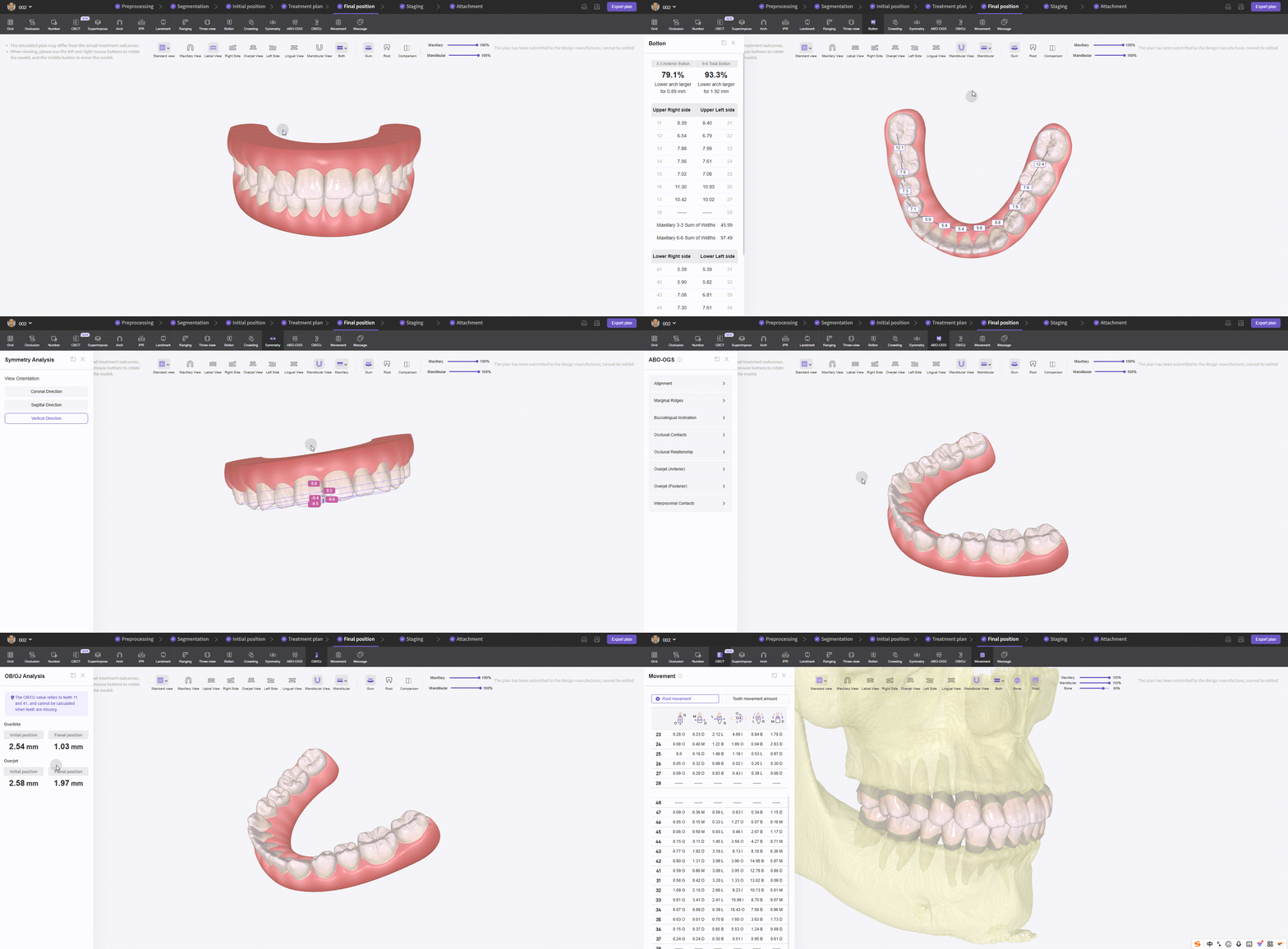
Final Position - Analysis Tools

Final Position - Analysis Tools

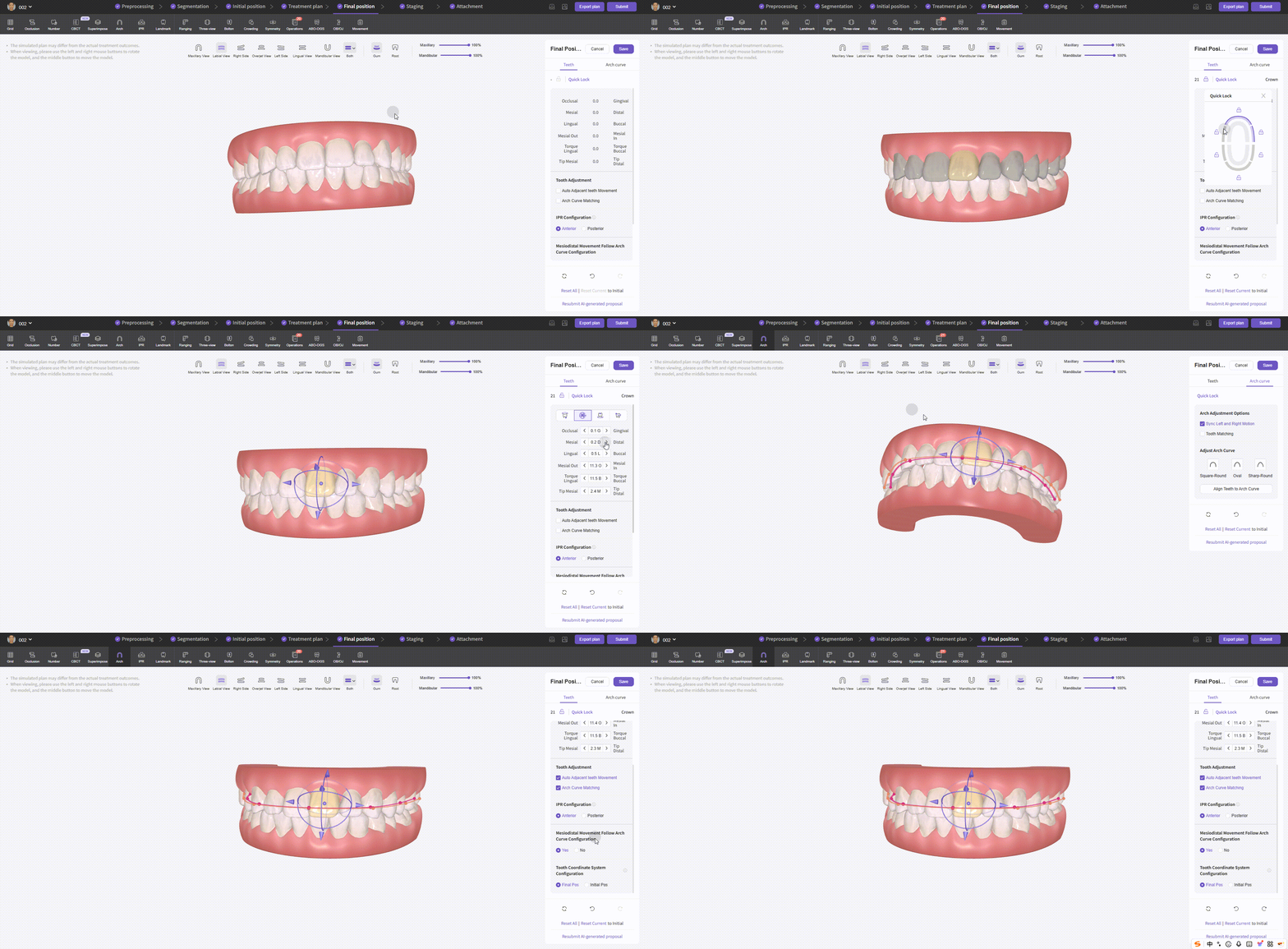
  • Adjustments: in top-right Adjust Final Position Model, you can move teeth and edit the arch curve.

PART 1 - Tooth Movement:

  • Locking teeth: select a tooth and click the lock button to lock it; quick lock options exist for anterior/posterior.
  • Movement control: select teeth, choose rotation center (root, crown center, cusp tip, pivot). Drag controls to translate/rotate, or change numbers in the fields. On the left side of the model you may enable "Allow IPR over limit". You can also click the plus on the model to add IPR or reserved space.

Adjust Final Position - Tooth Movement

Adjust Final Position - Tooth Movement

Configuration: Tooth Adjustment Options can enable auto adjacent teeth movement and arch-curve matching. IPR Configuration controls whether anterior or posterior movement is prioritized when adjusting IPR/space. Mesial/Distal movement along arch curve and Tooth coordinate system options are available — using the final-position tooth coordinate system is recommended for movement calculations.
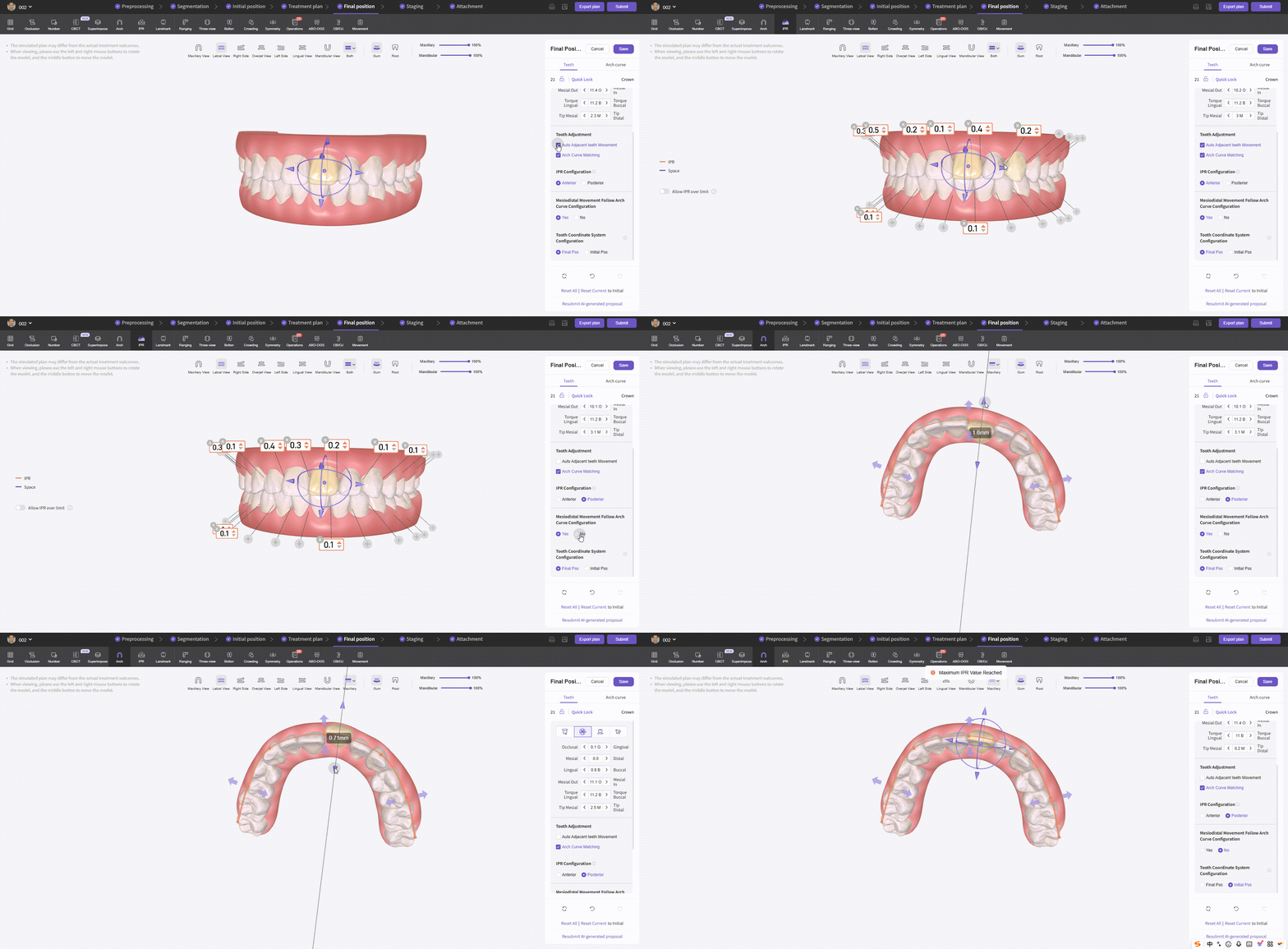
Adjust Final Position - Configs

Adjust Final Position - Configs

PART 2 - Arch Curve: drag anchor points on the arch curve to manually adjust, or use Adjust Arch Shape to set Square-Round, Oval, or Sharp-Round profiles.
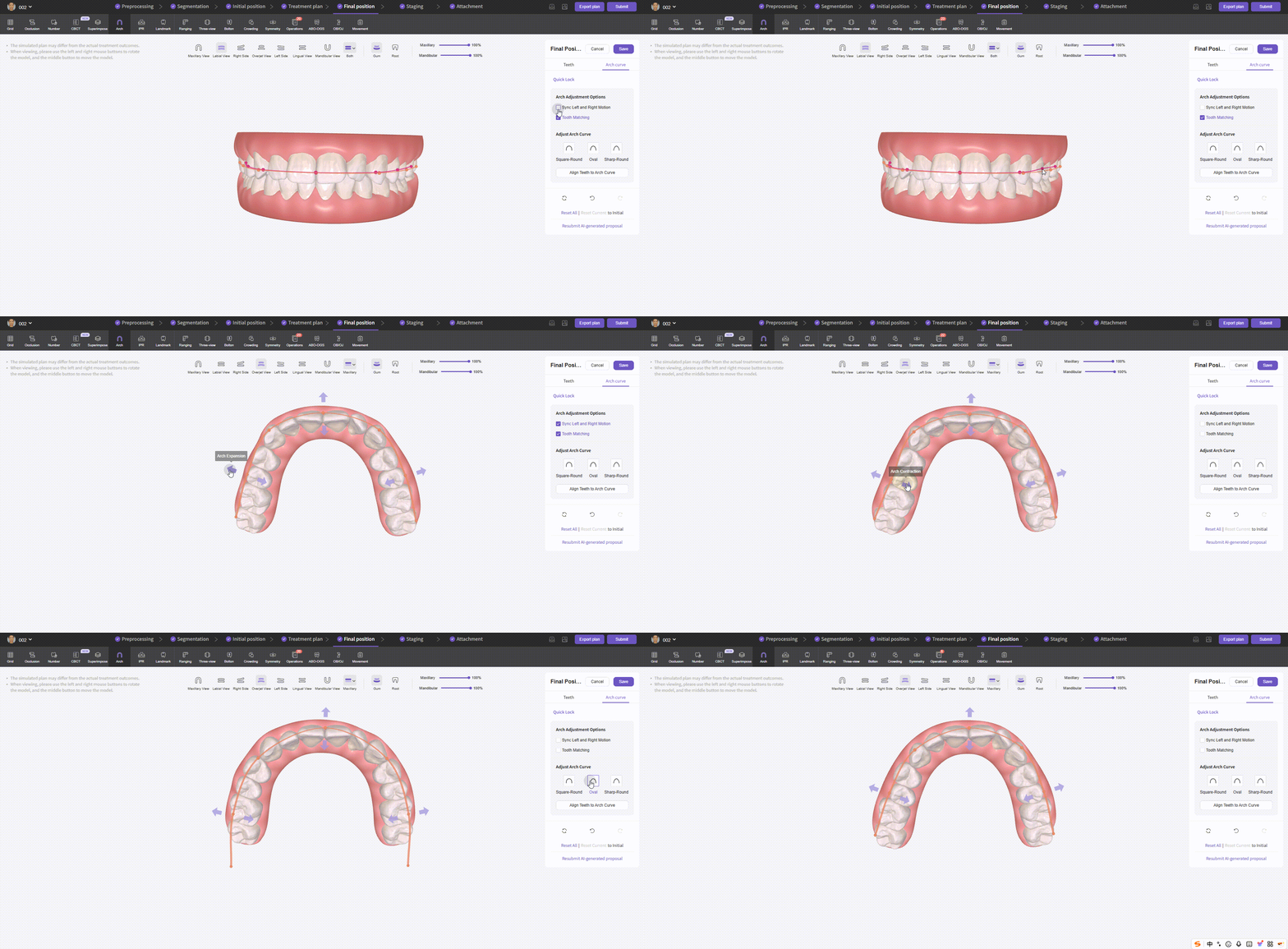
Adjust Final Position - Arch Curve

Adjust Final Position - Arch Curve


Staging

The Staging node helps you view and edit the AI automatic staging plan. It also provides editors for Bite-jumping, Overcorrection, and Passive Appliances.
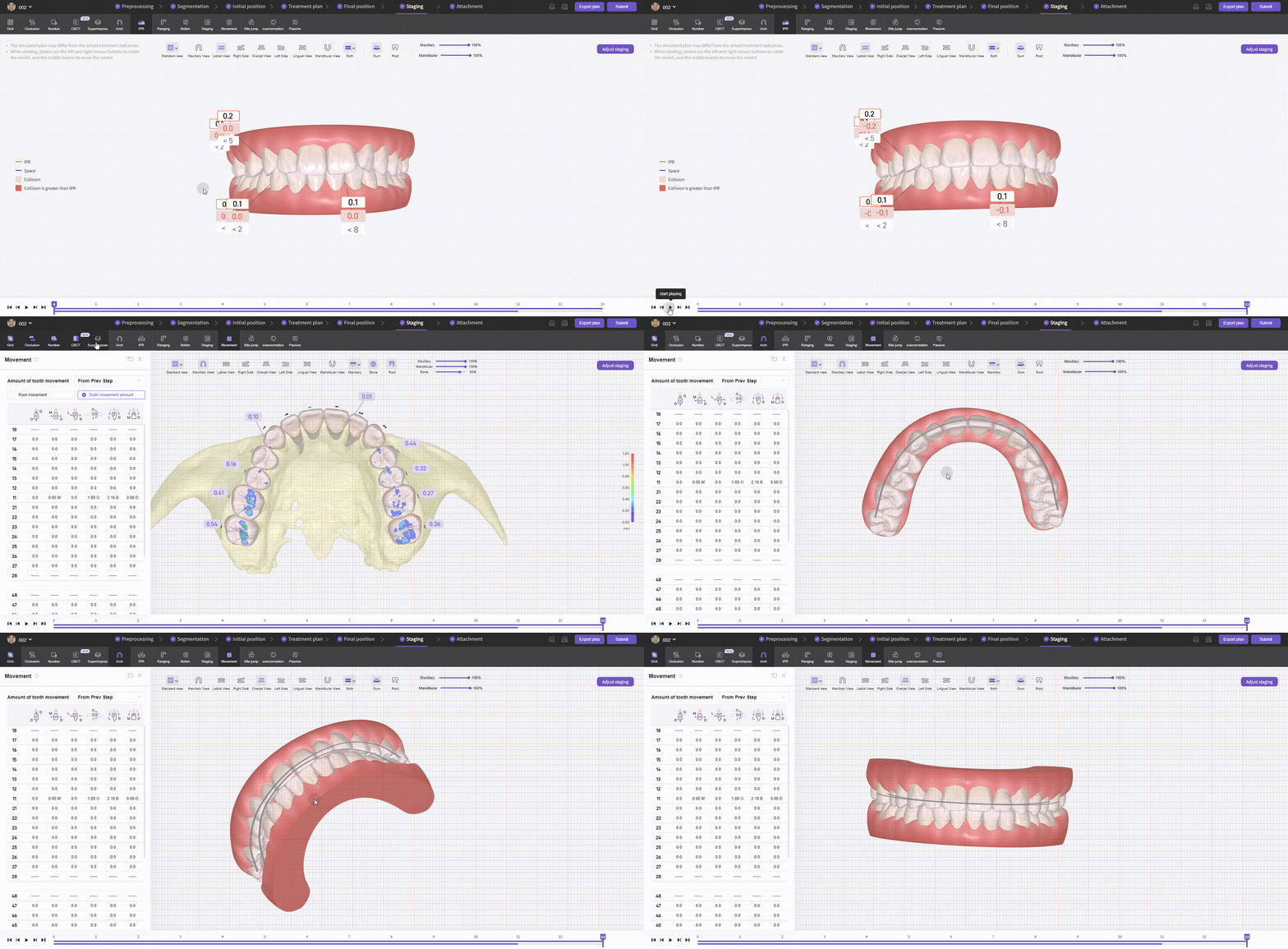
  • Views: click the play button in the bottom navigation to view the staging animation. You can combine this with Occlusal Collision, Crown-Root View, Superimpose, and other auxiliary tools. Staging - Views

Staging - Views

  • Adjustments: two modes.

1.AI Preferences (quick edit, recommended for clinicians): By adjusting the Maximum Correction per Step, you can set the movement threshold for each stage of treatment. Once edited and submitted, the AI algorithm will ensure that tooth movement in the newly generated staging sequence does not exceed this predefined limit.
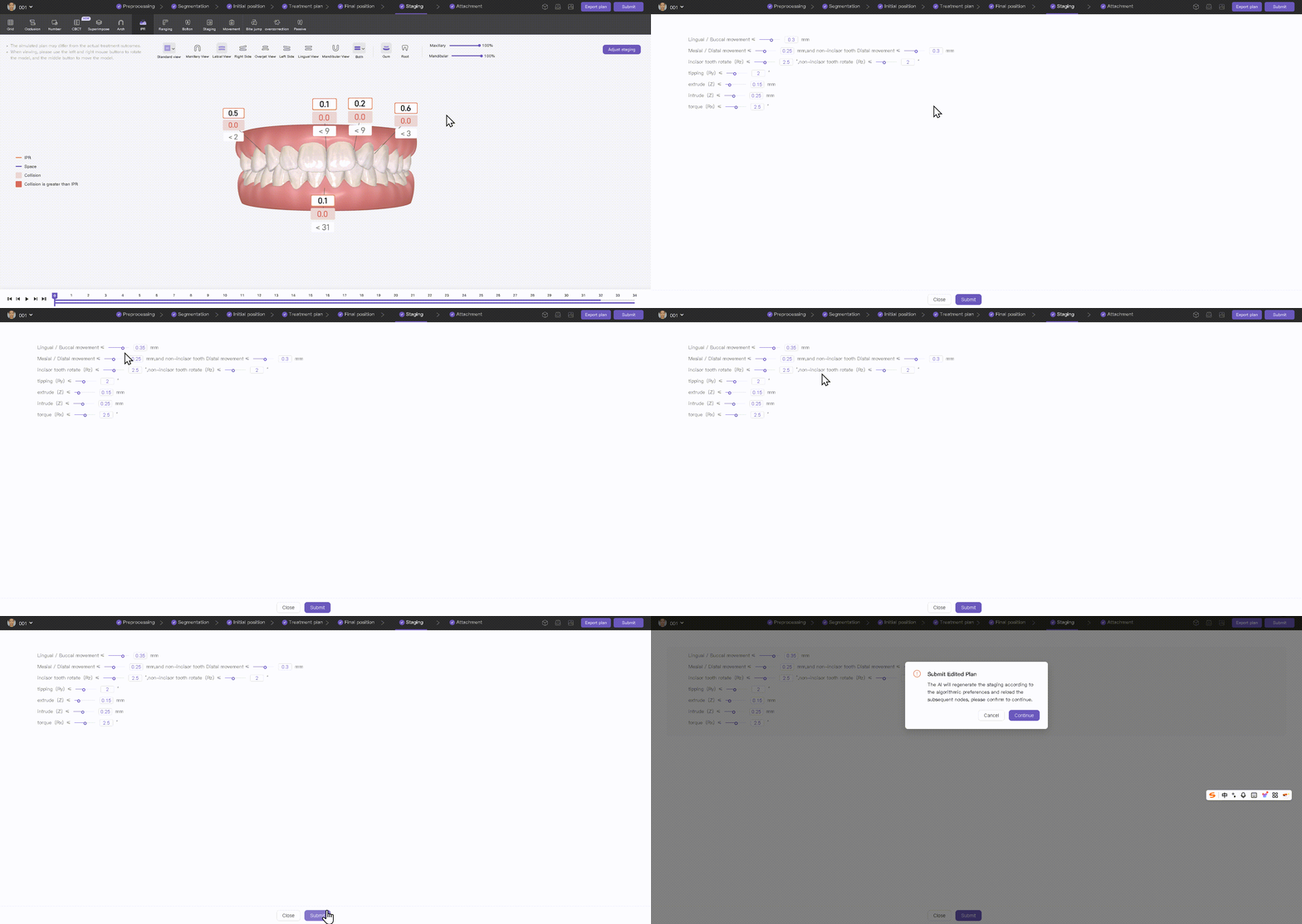
Staging - AI Preferences

Staging - AI Preferences

Set the default per-step maximum movement under Profile → Account Settings  Preferences. New cases will apply this default when generating staging.
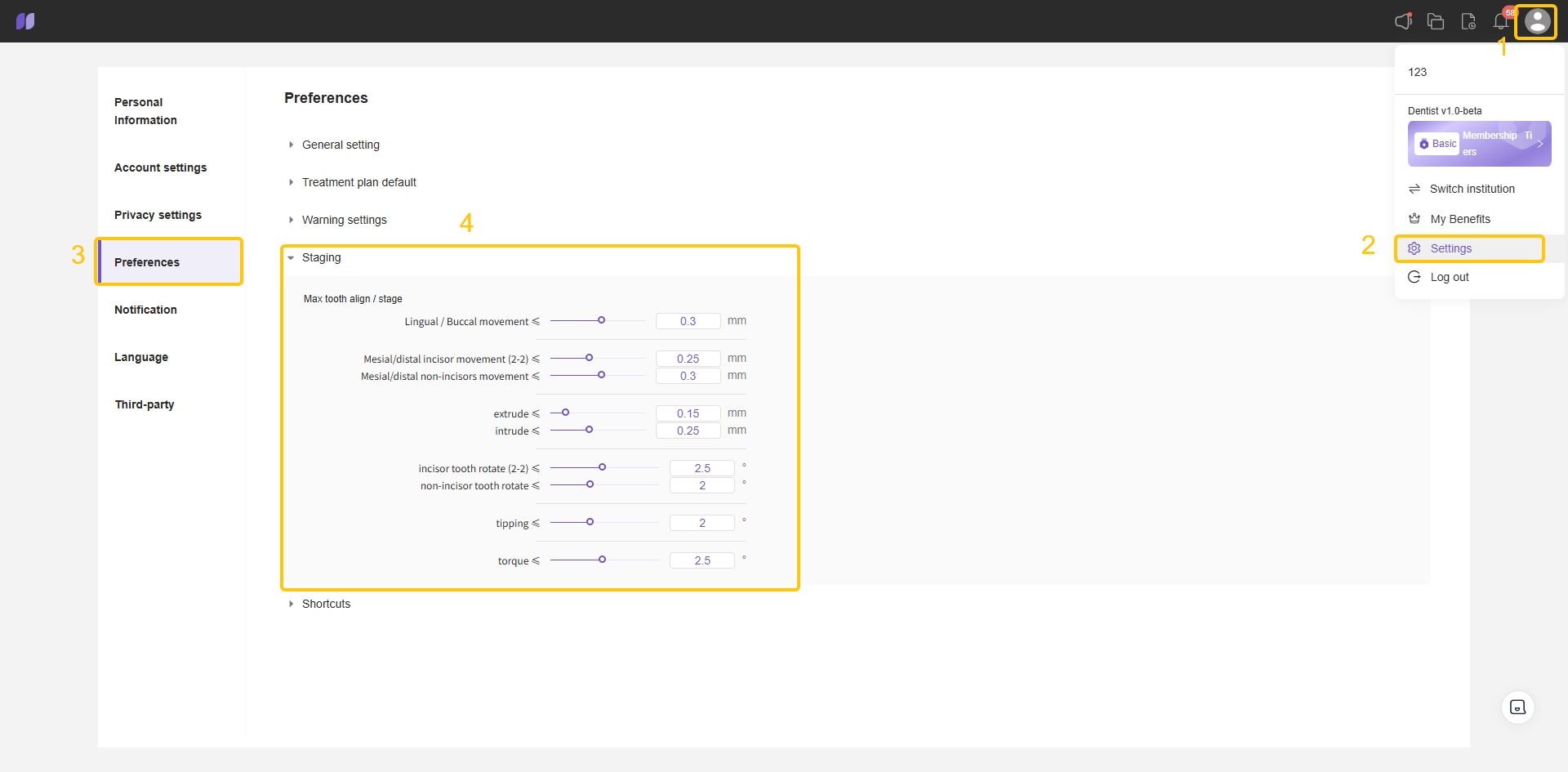
Preferences - Staging

Preferences - Staging

2. Manual Staging Adjustments (powerful; recommended for technicians): the staging navigation left panel shows movement/rotation types; top-right lets you set the normal treatment maximum steps. Drag keyframes to edit tooth movement steps; select a tooth and edit movement amounts via numeric fields.
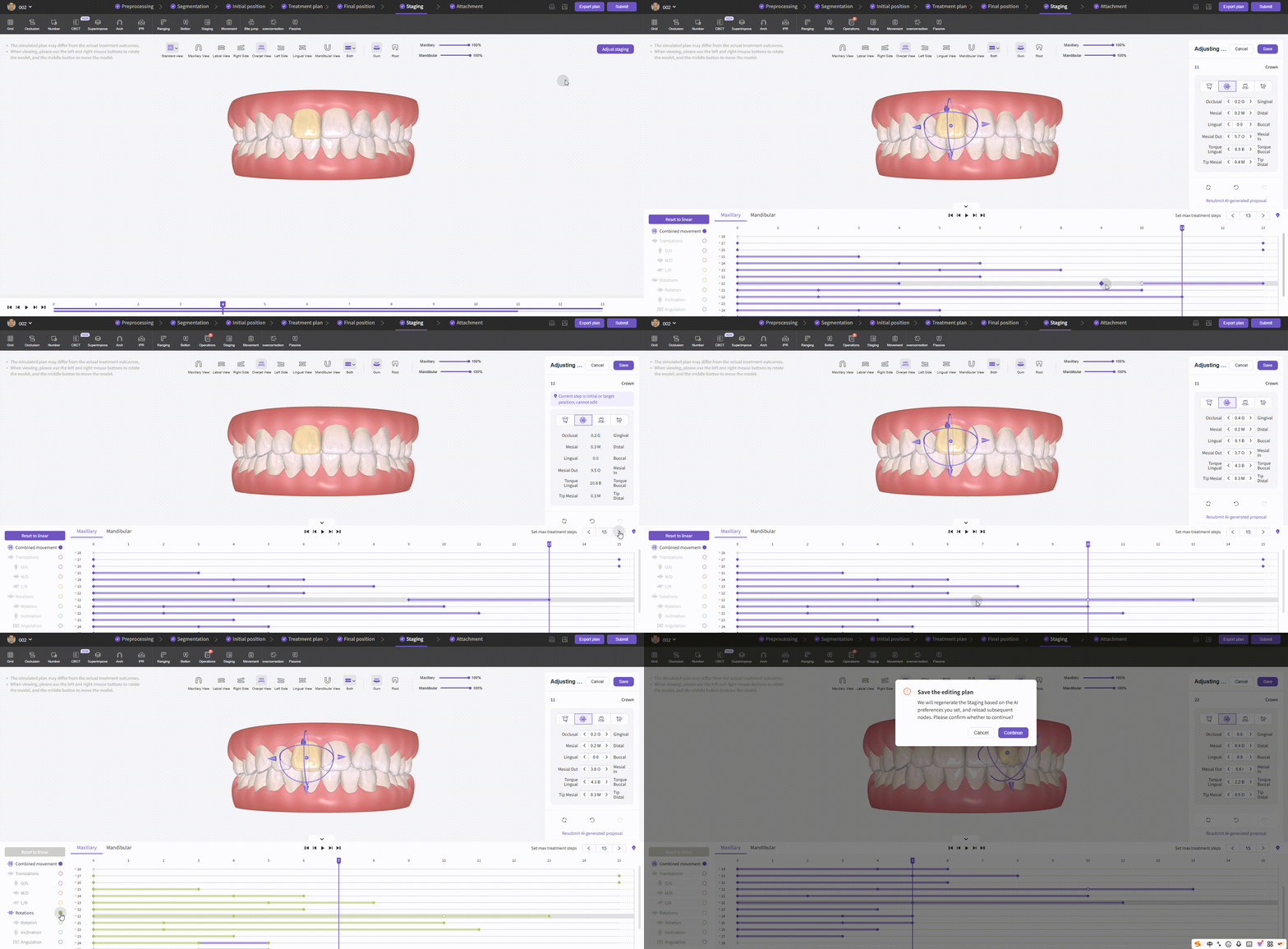
Staging - Manual Adjustments

Staging - Manual Adjustments


Keyframe Operations

1. Right-click a keyframe to open the context menu and copy or delete the current keyframe.
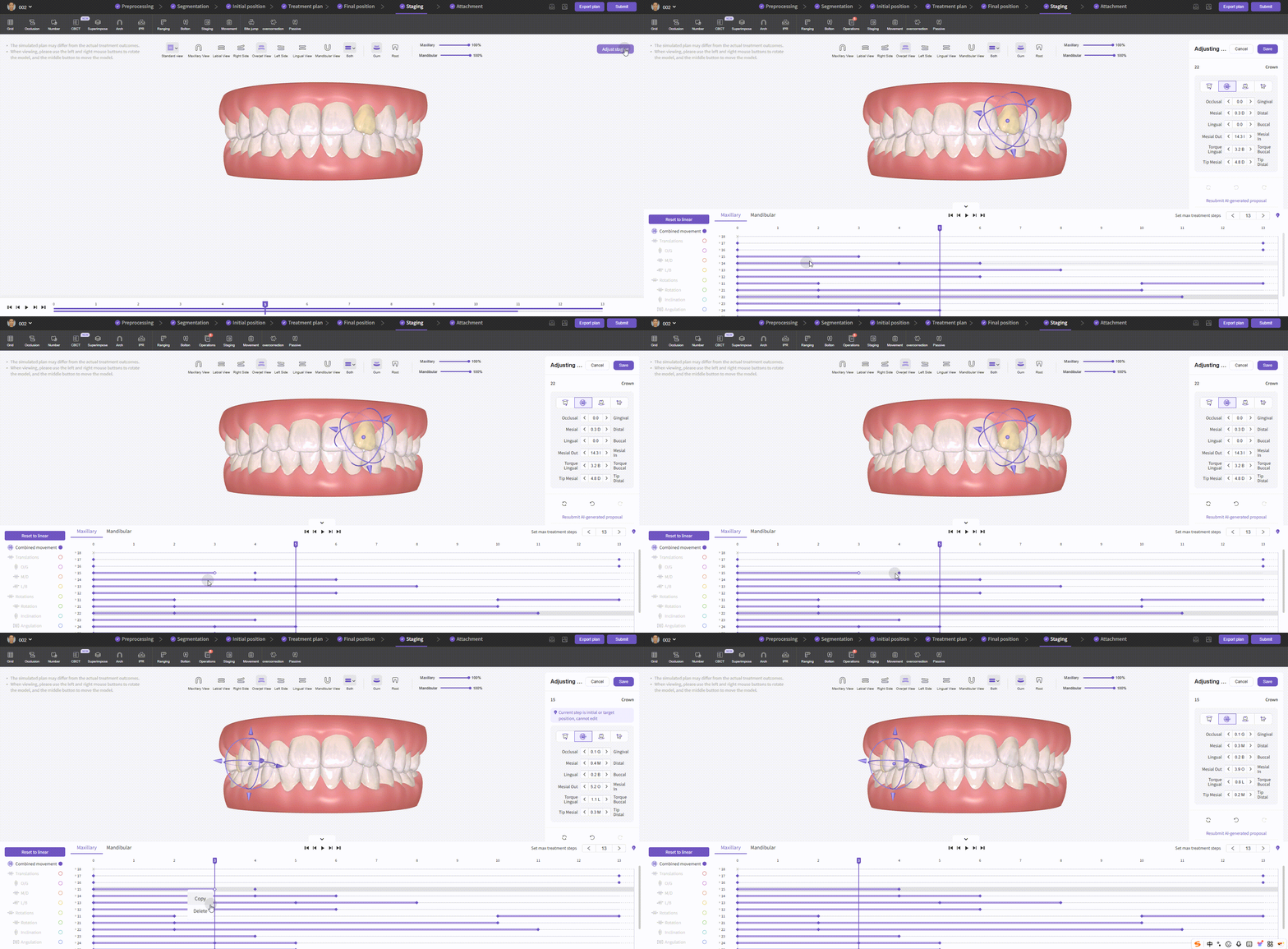
Keyframe - Copy & Delete

Keyframe - Copy & Delete

2. Deleting a custom keyframe will undo the corresponding tooth movement; undoing a tooth movement will remove its custom keyframe. Undo shortcut: Ctrl+Z.
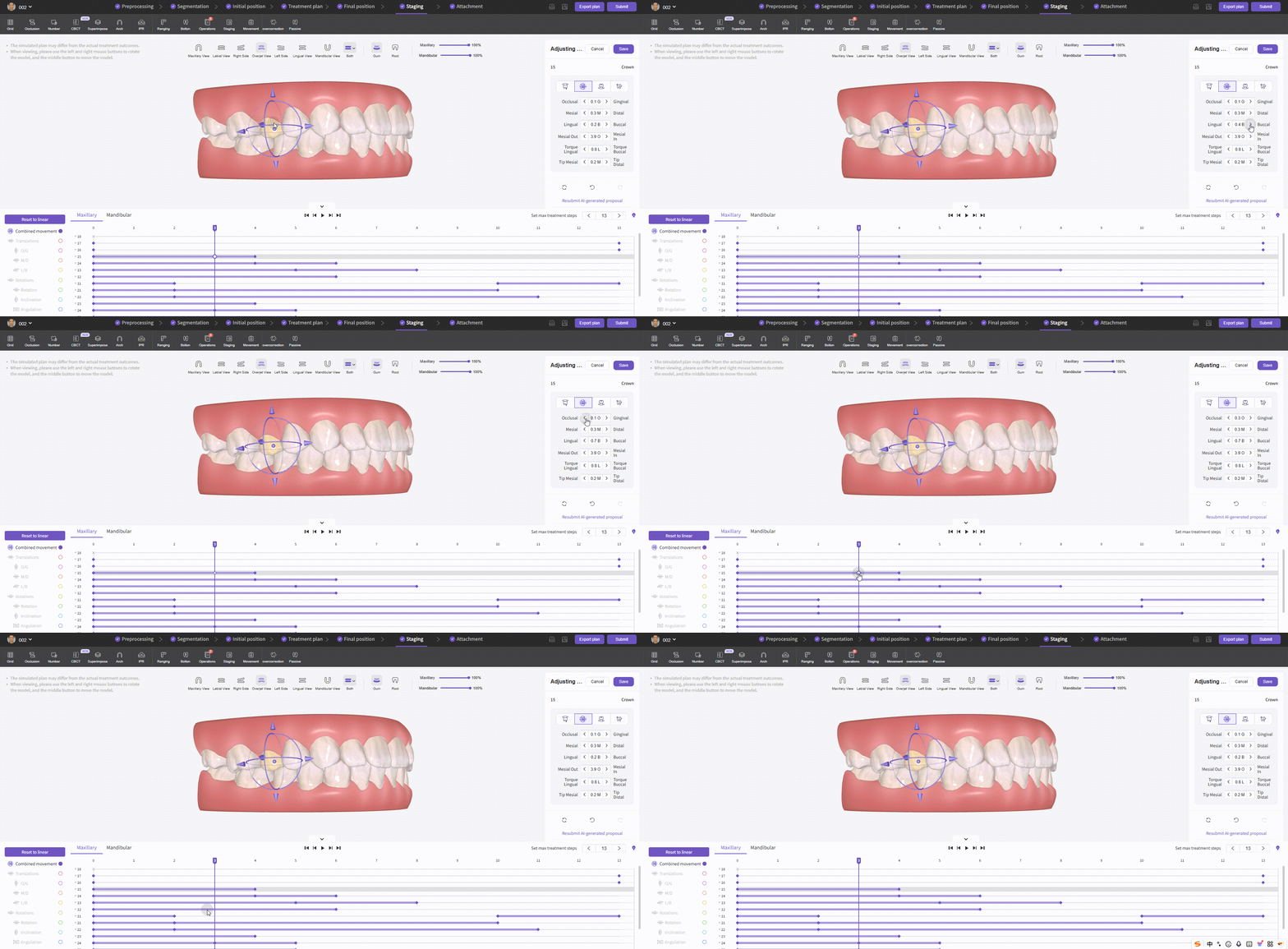
Keyframe - Undo

Keyframe - Undo

3. Hold Ctrl to multi-select keyframes, or hold Alt to box-select, then drag to move in bulk.
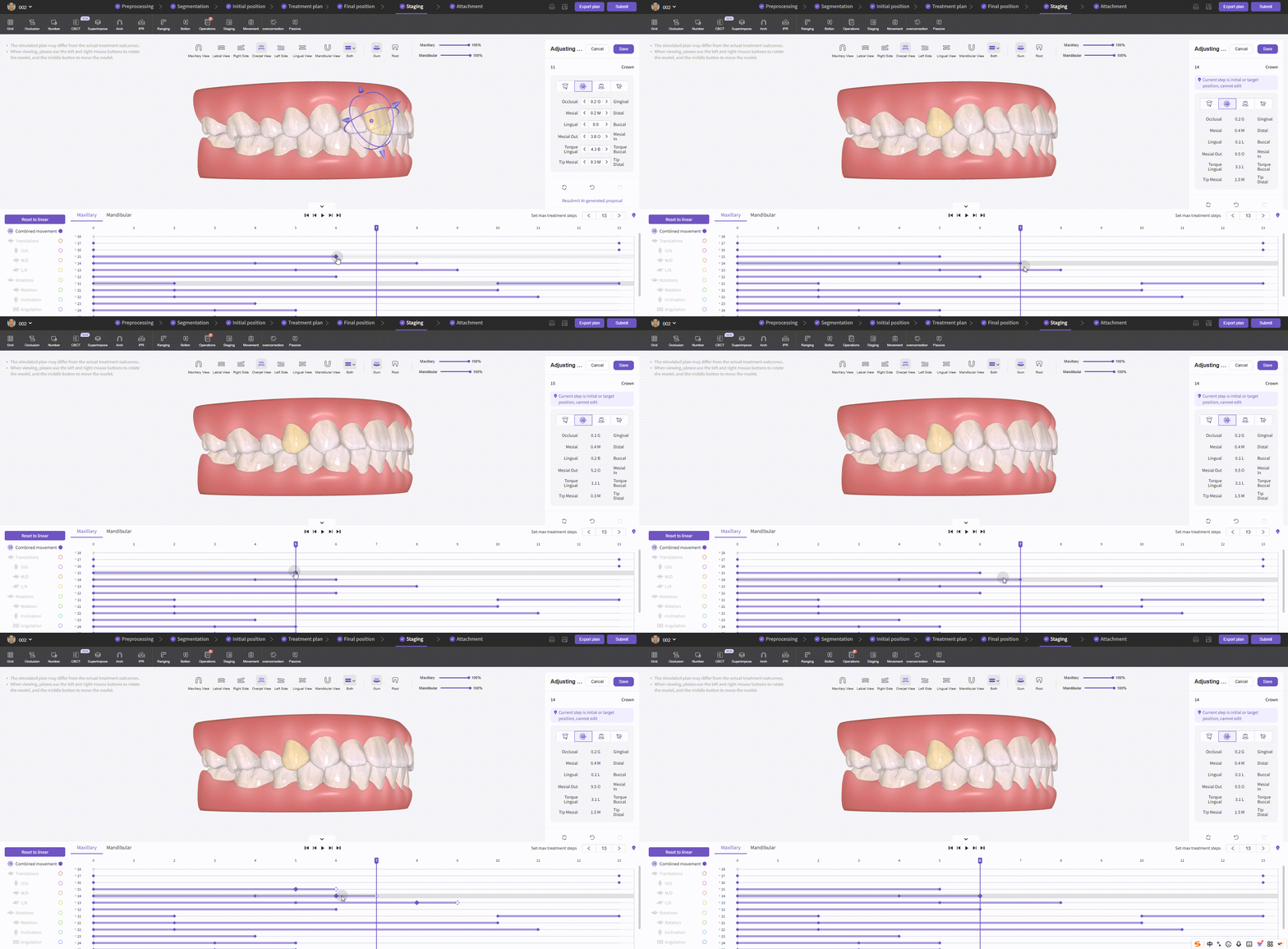
Keyframe - Multi-select & Box-select

Keyframe - Multi-select & Box-select

4. Right-click empty space to create a new keyframe.
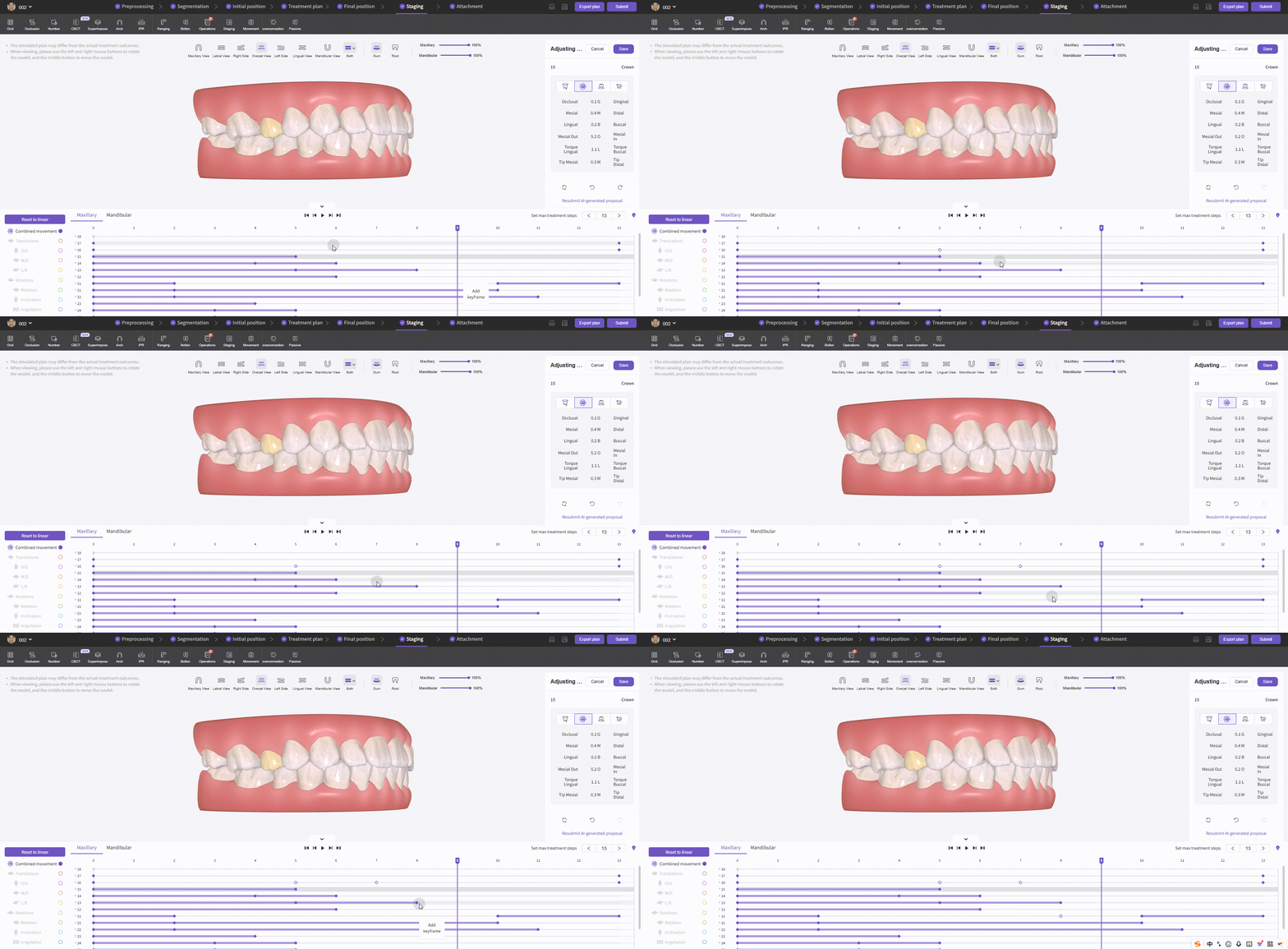
Keyframe - Add

Keyframe - Add

Keyframe Direction Sequences To inspect movement/rotation directions, select the desired direction type on the left. Click a tooth sequence dropdown to show six direction components.
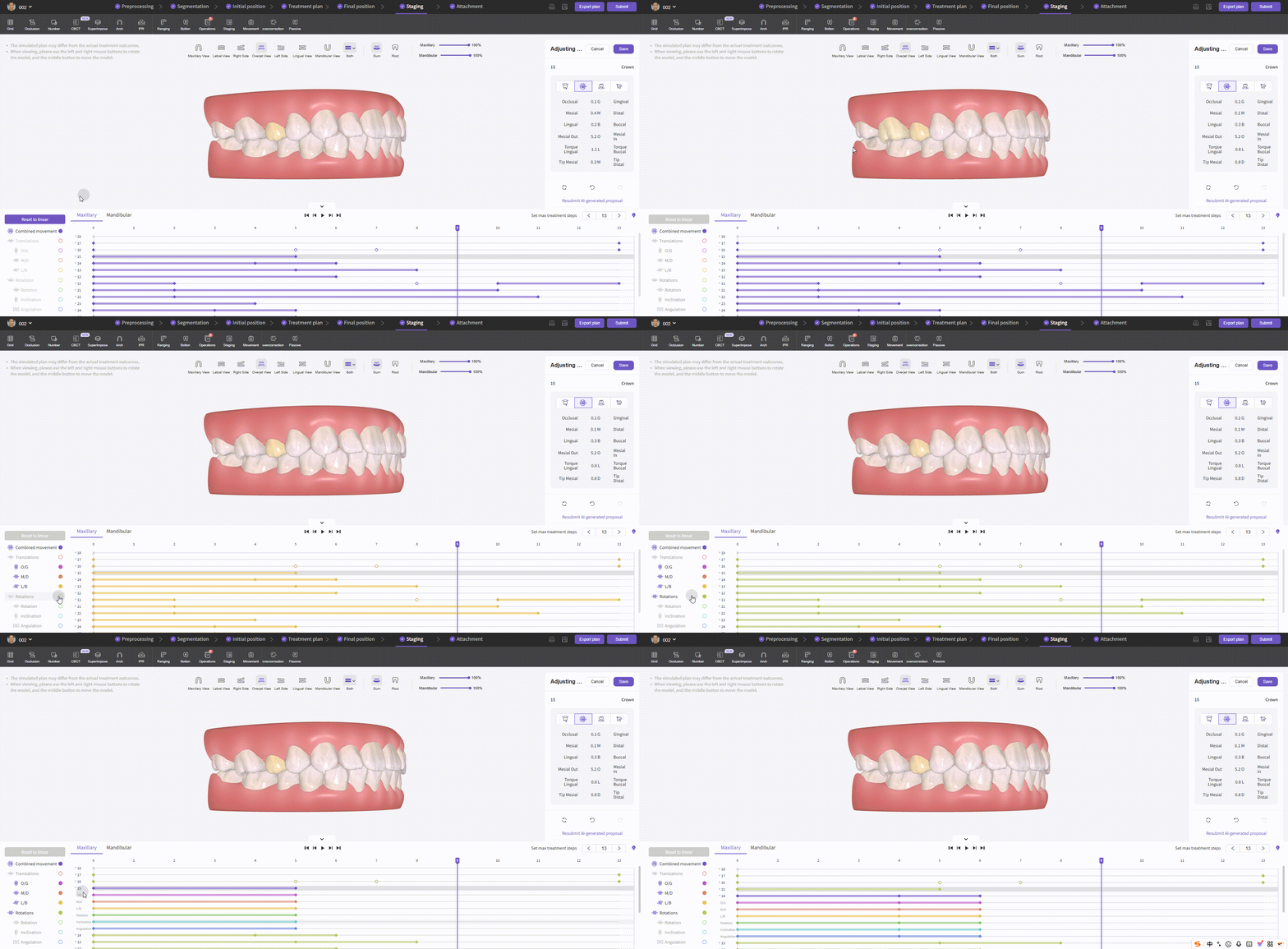
Keyframe - Direction Sequence

Keyframe - Direction Sequence

Keyframe Sequence Speed To view tooth movement speed at each stage, first click the Reset to Linear Interpolation Plan button on the left. Then hold the Ctrl key and select the keyframes at both ends of the sequence; the system will automatically display the tooth movement speed in six directions within that sequence.
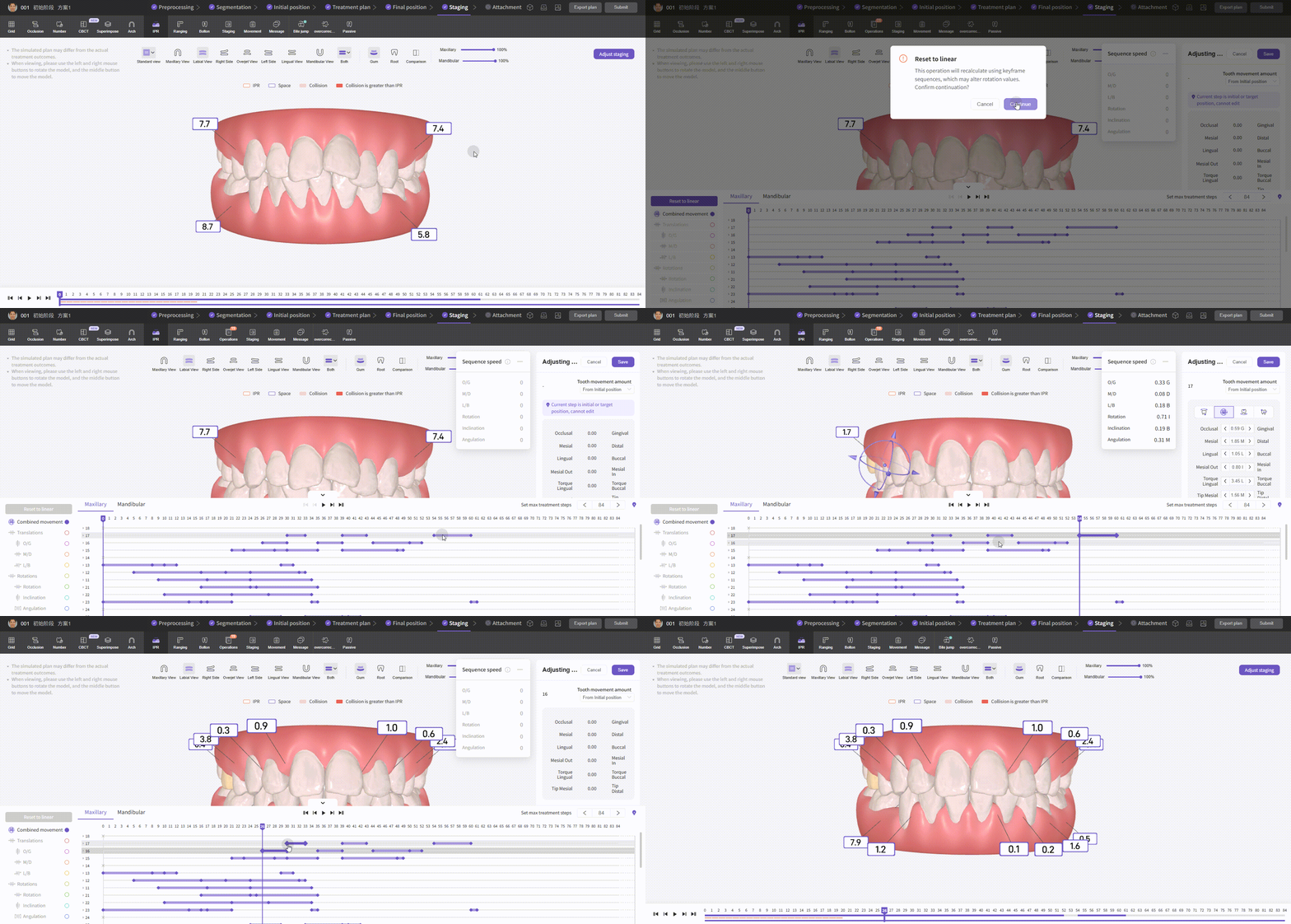
Keyframe - Sequence Speed

Keyframe - Sequence Speed


Examples

1. Slow down a tooth movement
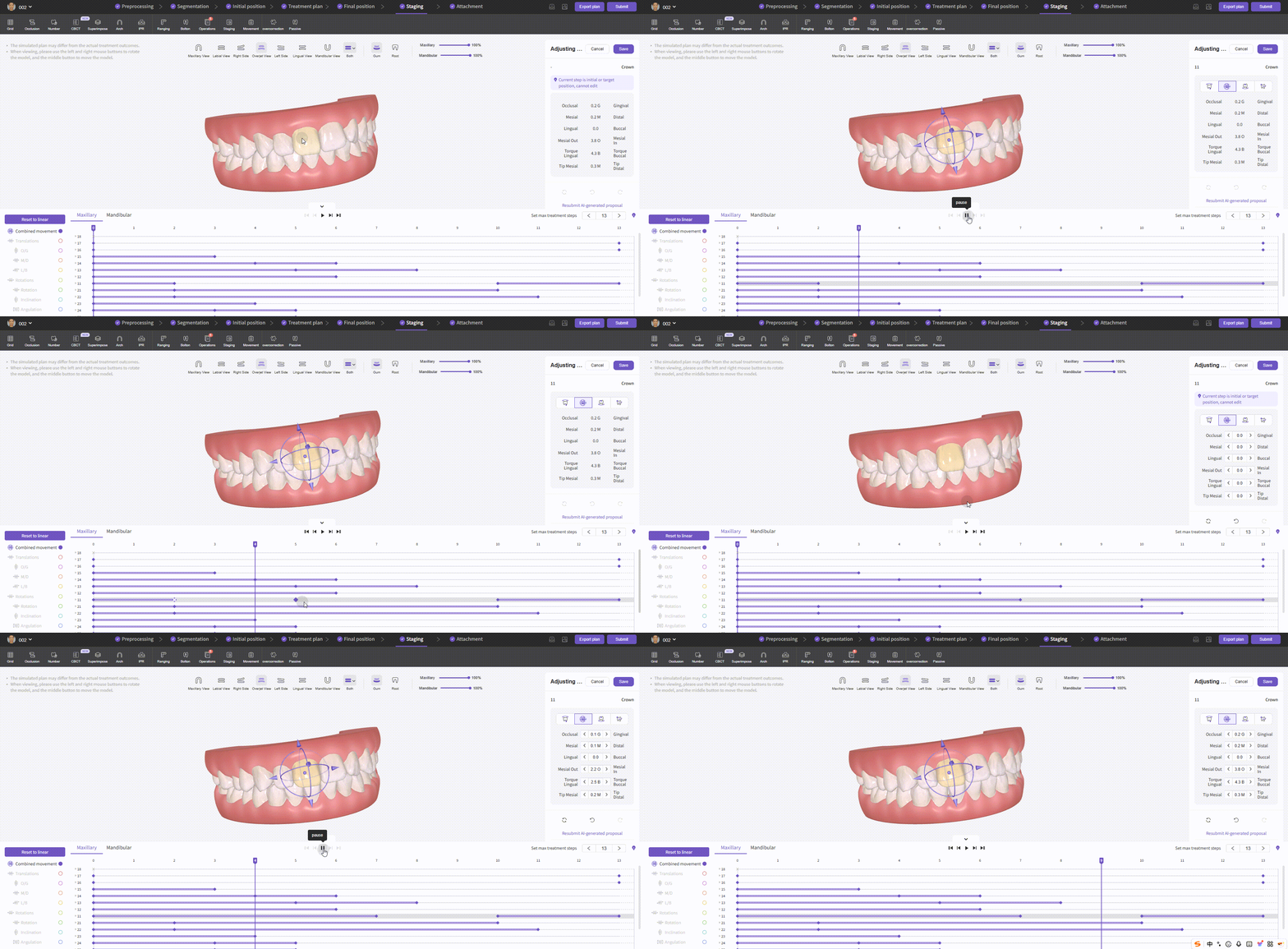
Example - Slow Movement

Example - Slow Tooth Movement

2. Speed up a tooth movement and end earlier
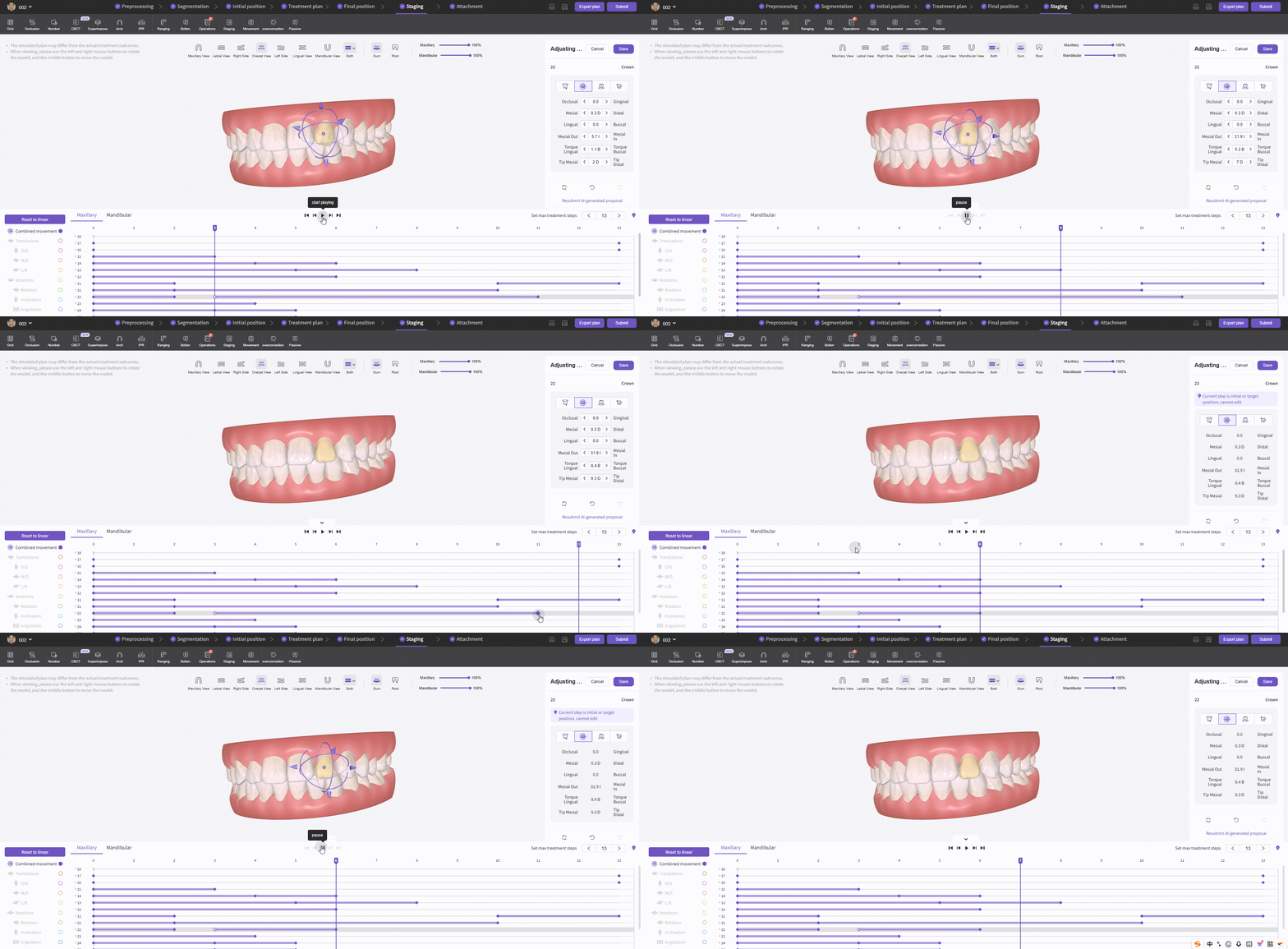
Example - Speed Up Movement

Example - Speed Up Tooth Movement

3. Pause a tooth movement for a few steps then resume
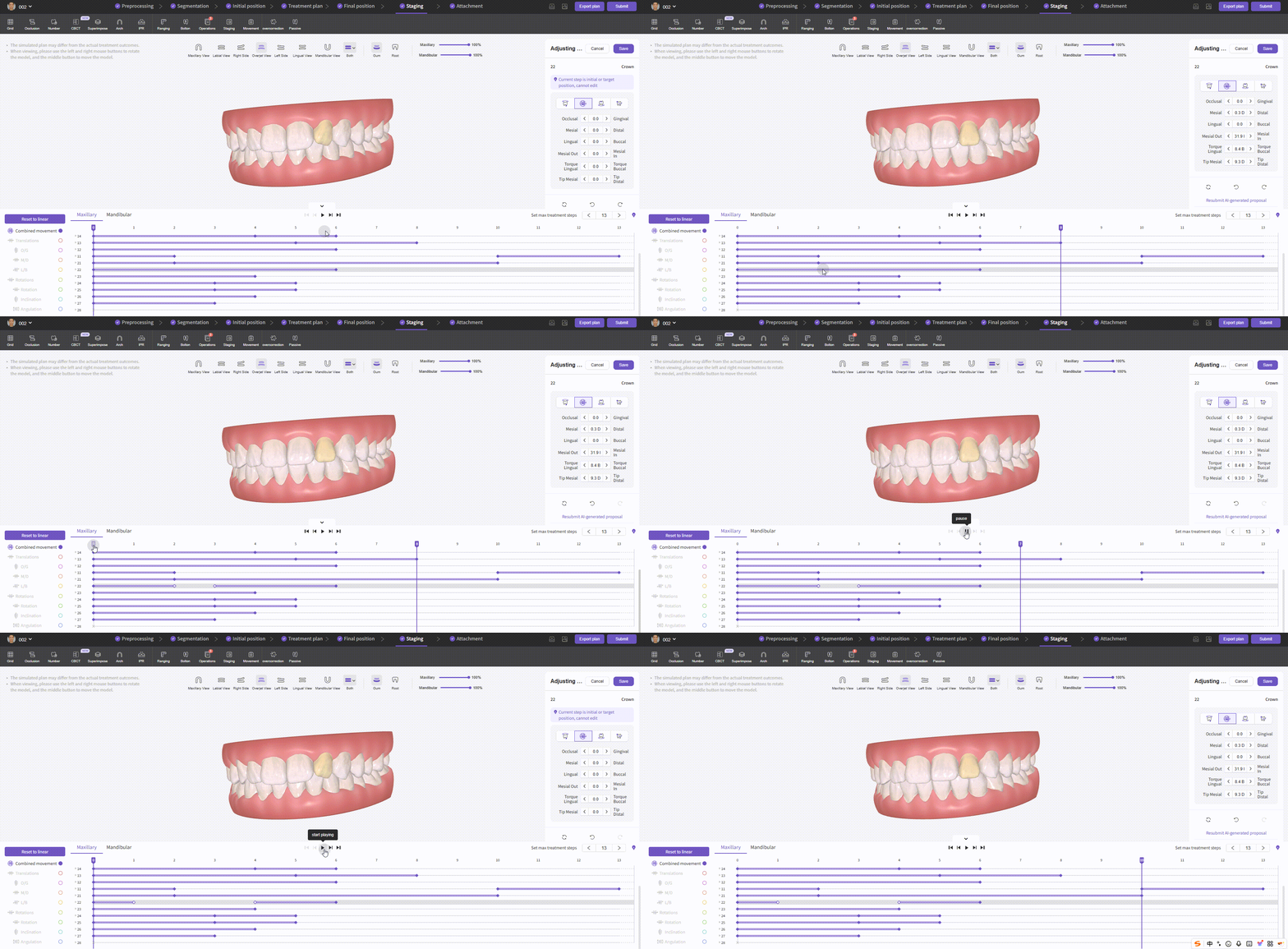
Example - Pause & Resume

Example - Pause & Resume

Editors:
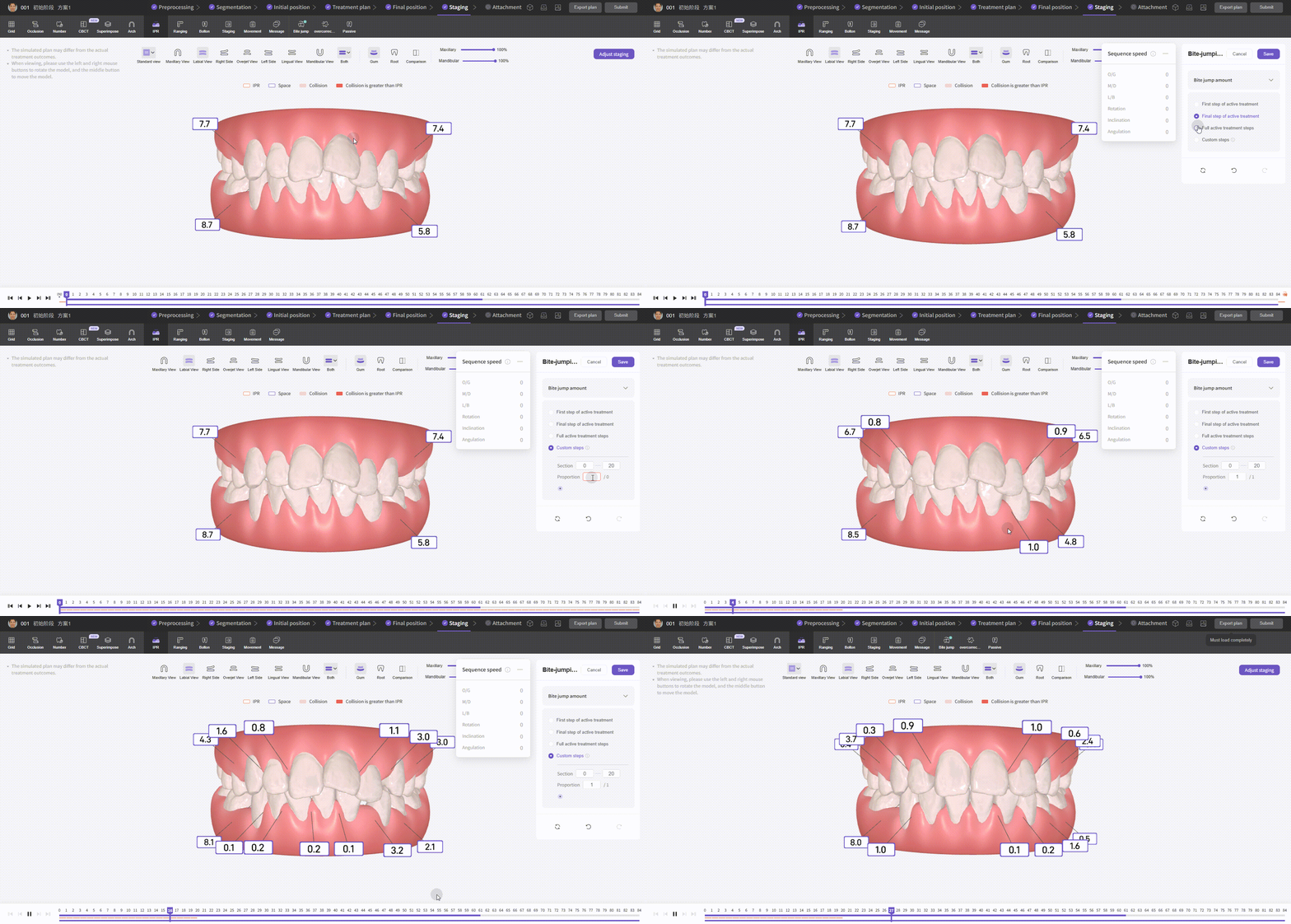
  • Bite-jumping: set the step number for bite-jumping. To use bite-jumping, configure it earlier in Model Preprocessing.

Staging - Bite-jumping

Staging - Bite-jumping

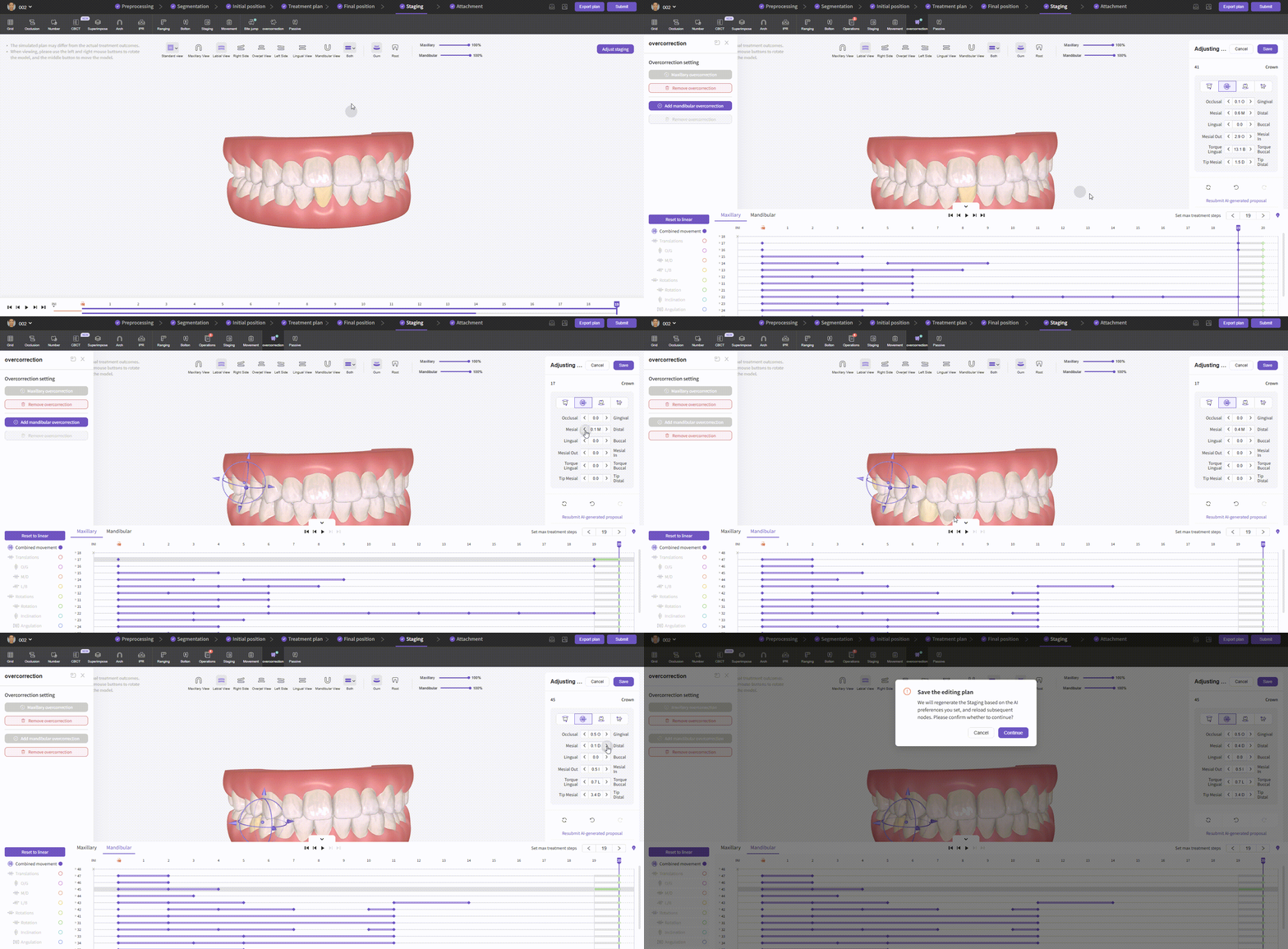
  • Overcorrection: add overcorrection steps to the upper/lower arch and edit affected teeth.

Staging - Overcorrection

Staging - Overcorrection

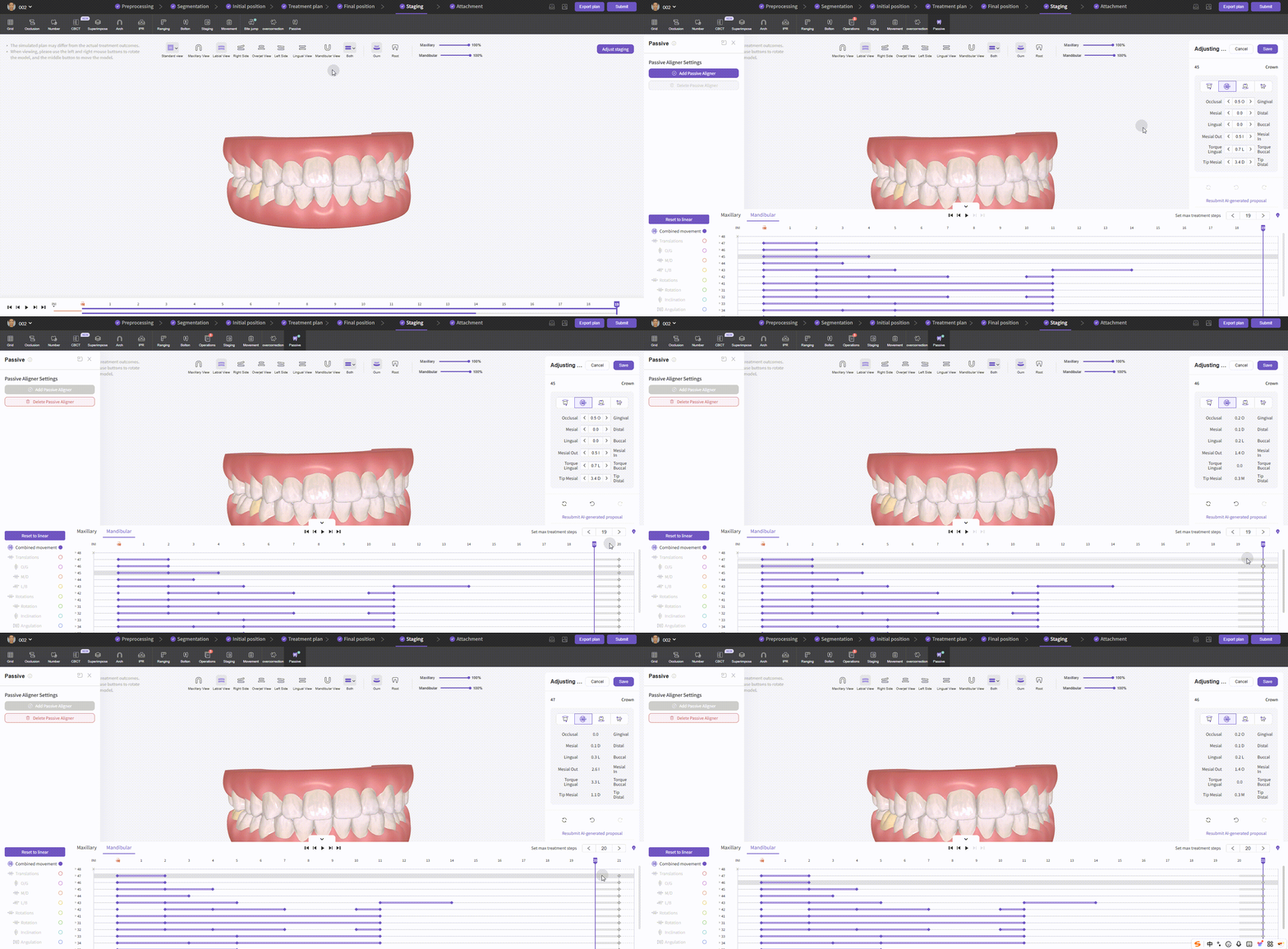
  • Passive Appliances: added passive appliance steps are appended to the final steps and applied to both arches simultaneously. To add during staging or to a single arch, duplicate keyframes in the keyframe sequence list.

Staging - Add Passive Appliance

Staging - Add Passive Appliance


Attachments

The Attachments node helps you check automatic attachments and add pontics.
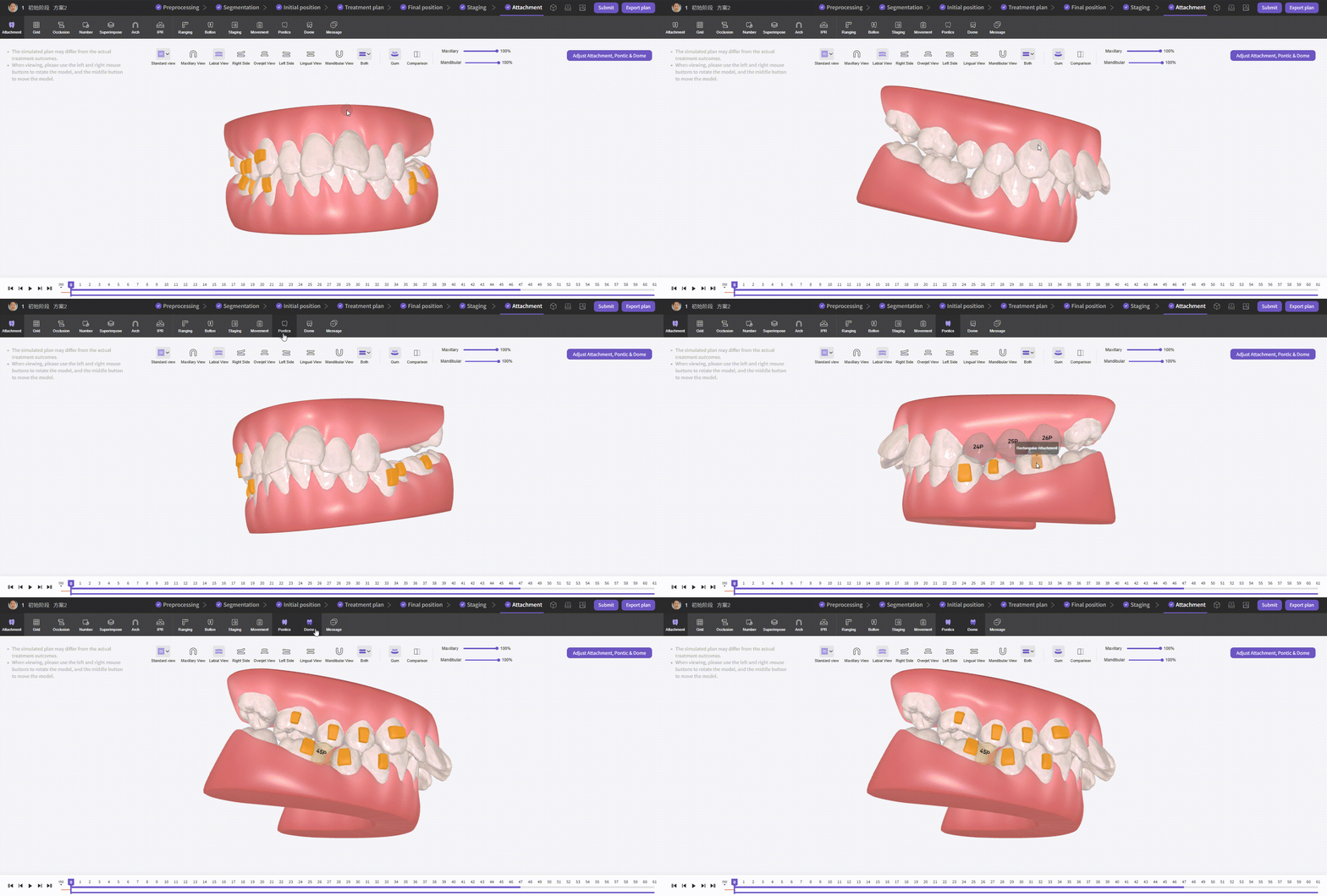
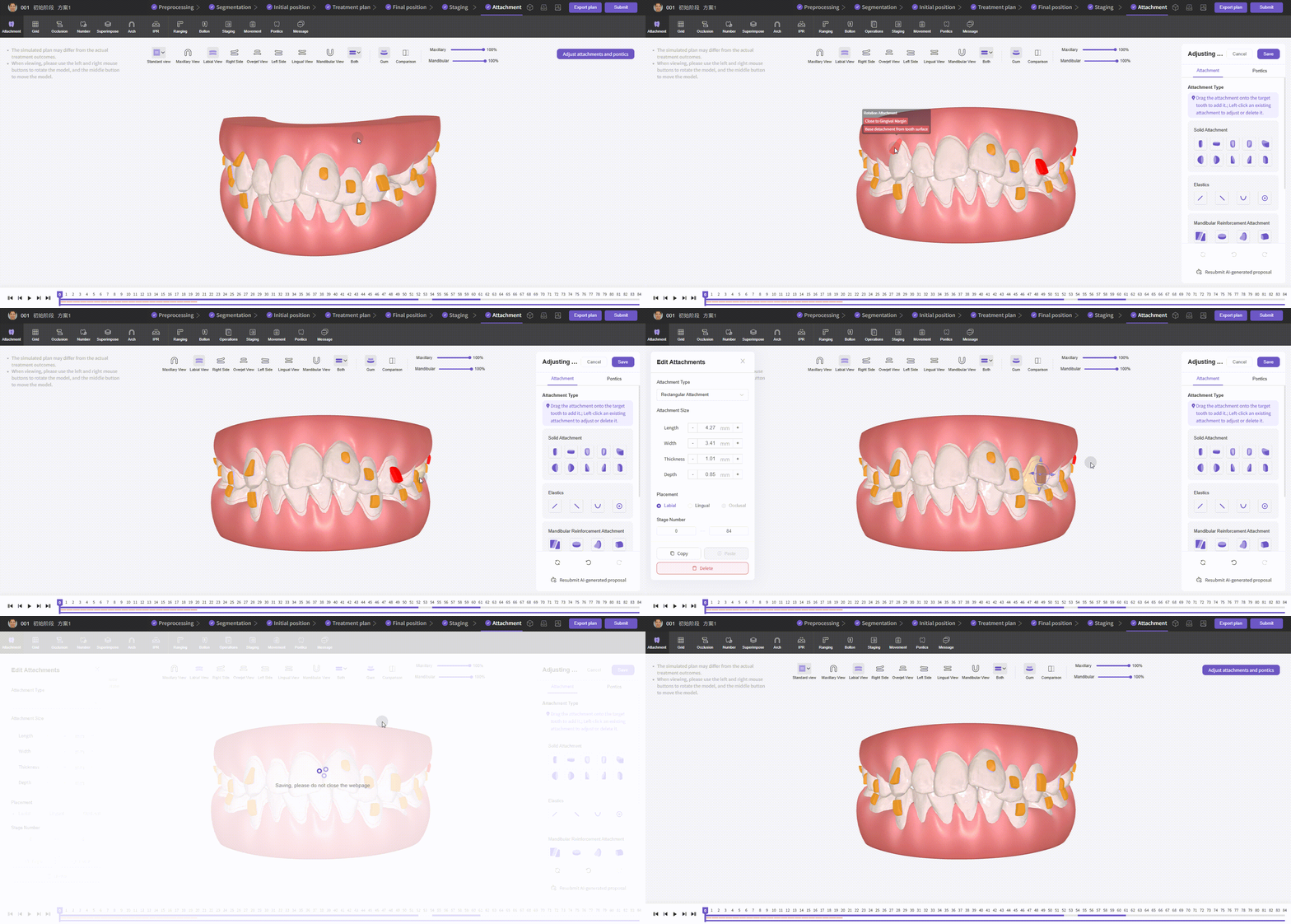
  • Views: includes Attachments , Pontics and Dome.

Attachments - Views

Attachments - Views

  • Adjust Attachments: drag an attachment onto a selected tooth to add it. Click an attachment to translate/rotate via controls; right-click to set staging or delete.
  • Red Attachment Alert: A red attachment indicates an anomaly (e.g., Base detachment from tooth surface or Close to Gingival Margin). Adjust the position until the red highlight disappears.

Attachments - Red Highlight

Attachments - Adjust

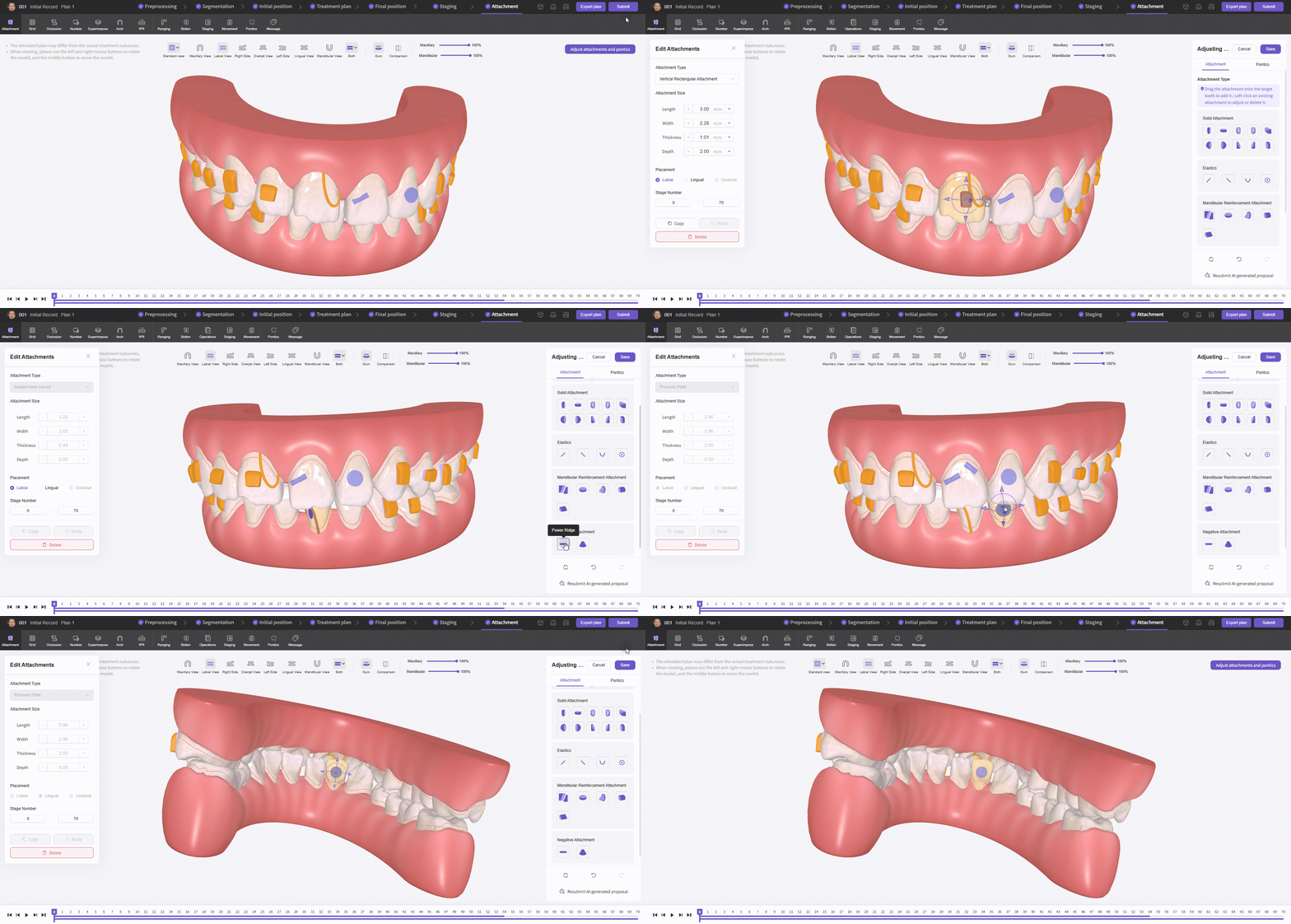
  • Attachment types: (1) Solid attachments (Vertical Rectangular, Horizontal Rectangular, Mesial Translation, Distal Translation, Stabilization, Mesial Anterior Root Control, Distal Anterior Root Control, Mesial Rotation, Distal Rotation, Extrusion attachments). (2) Traction attachments (Mesial Hook, Distal Hook, Traction Hook Cut-out, Elastics Button). (3) Mandibular reinforcement attachments (MA attachments, occlusal pads, guide plates).(4) Negative Attachments(Power Ridges, Pressure Points)

Attachments - Adjust

Attachments - Adjust
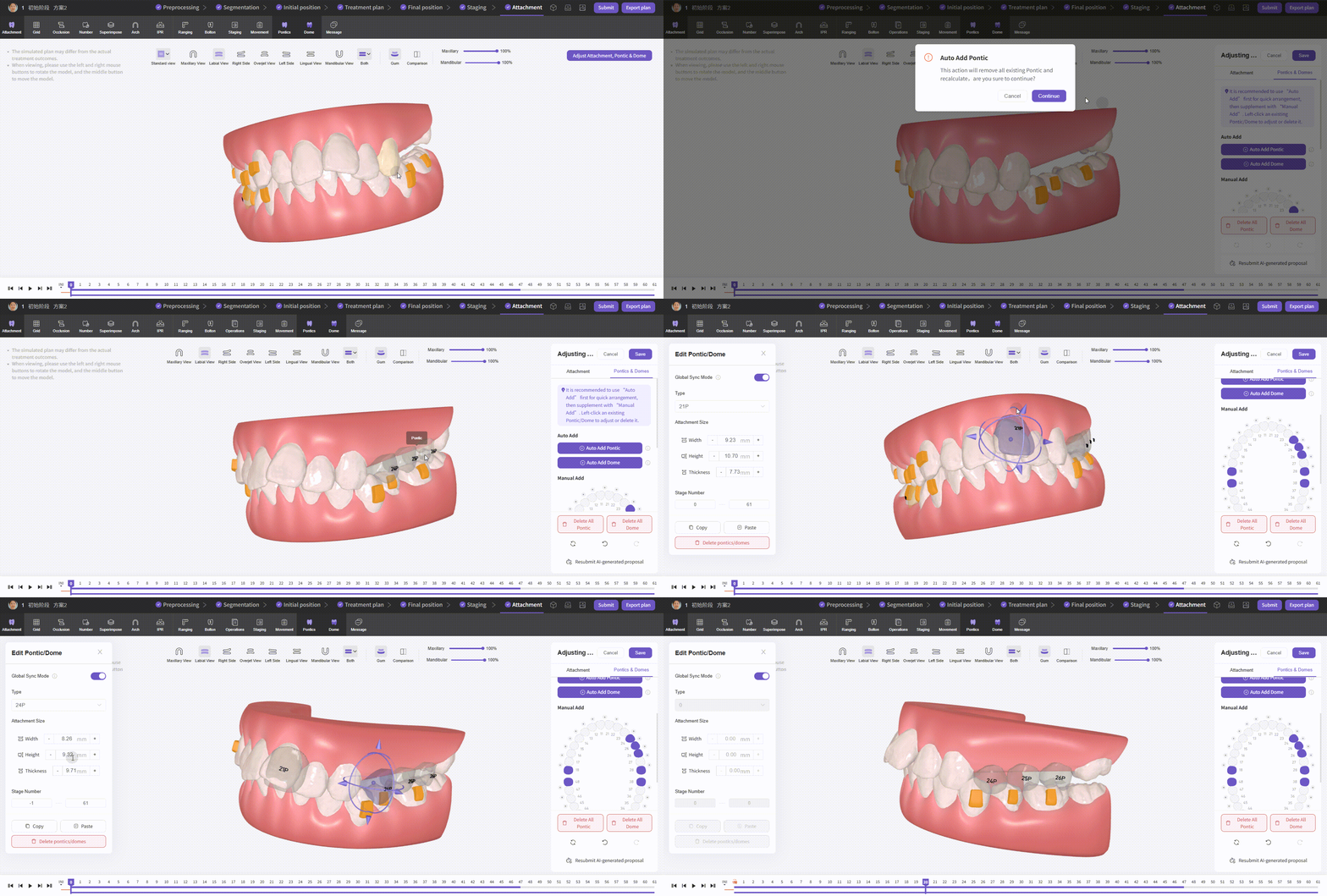
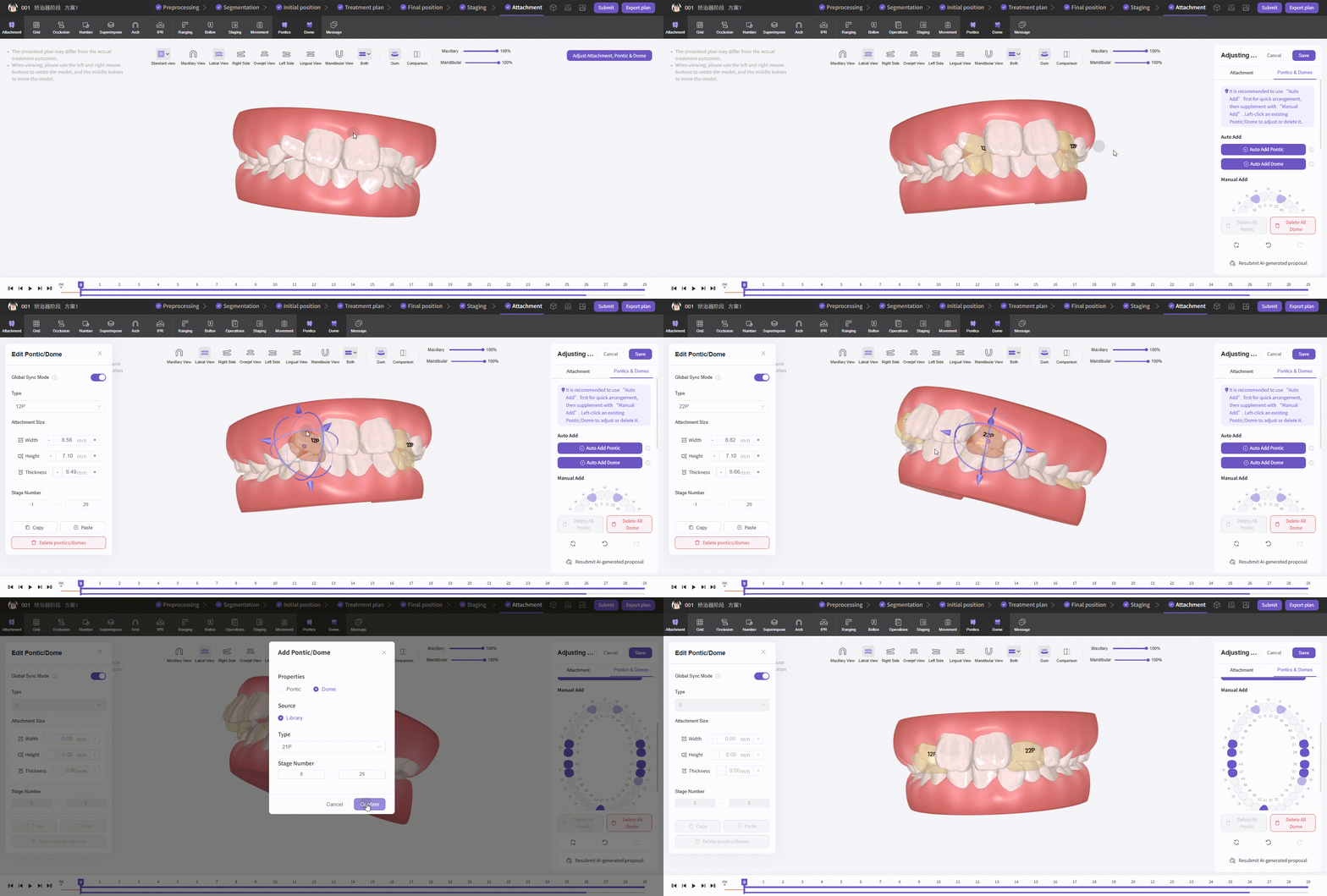
  • Adjust Pontics: Support adding pontics automatically by clicking the button, or manually adding pontics by clicking on the tooth map.Click a pontic to translate and rotate it using the controls. Use the numeric panel on the left to adjust its height, width, thickness, and steps.You can also choose whether to enable Global Sync Mode. When enabled, subsequent adjustments will be applied to all steps equally; when disabled, adjustments will affect only the current step.

Attachments - Pontics

Attachments - Pontics

  • Adjust Dome: Support adding domes automatically by clicking the button, or manually adding domes by clicking on the tooth map.Click a dome to translate and rotate it using the controls. Use the numeric panel on the left to adjust its height, width, thickness, and steps.You can also choose whether to enable Global Sync Mode. When enabled, subsequent adjustments will be applied to all steps equally; when disabled, adjustments will affect only the current step.

Attachments - Domes

Attachments - Domes


Other Features

1. Keyboard Shortcuts: shortcuts for Tooth Movement controls, View & Display, Animation & Timeline, and Basic Operations. Custom shortcuts supported and there is a one-click reset to defaults.
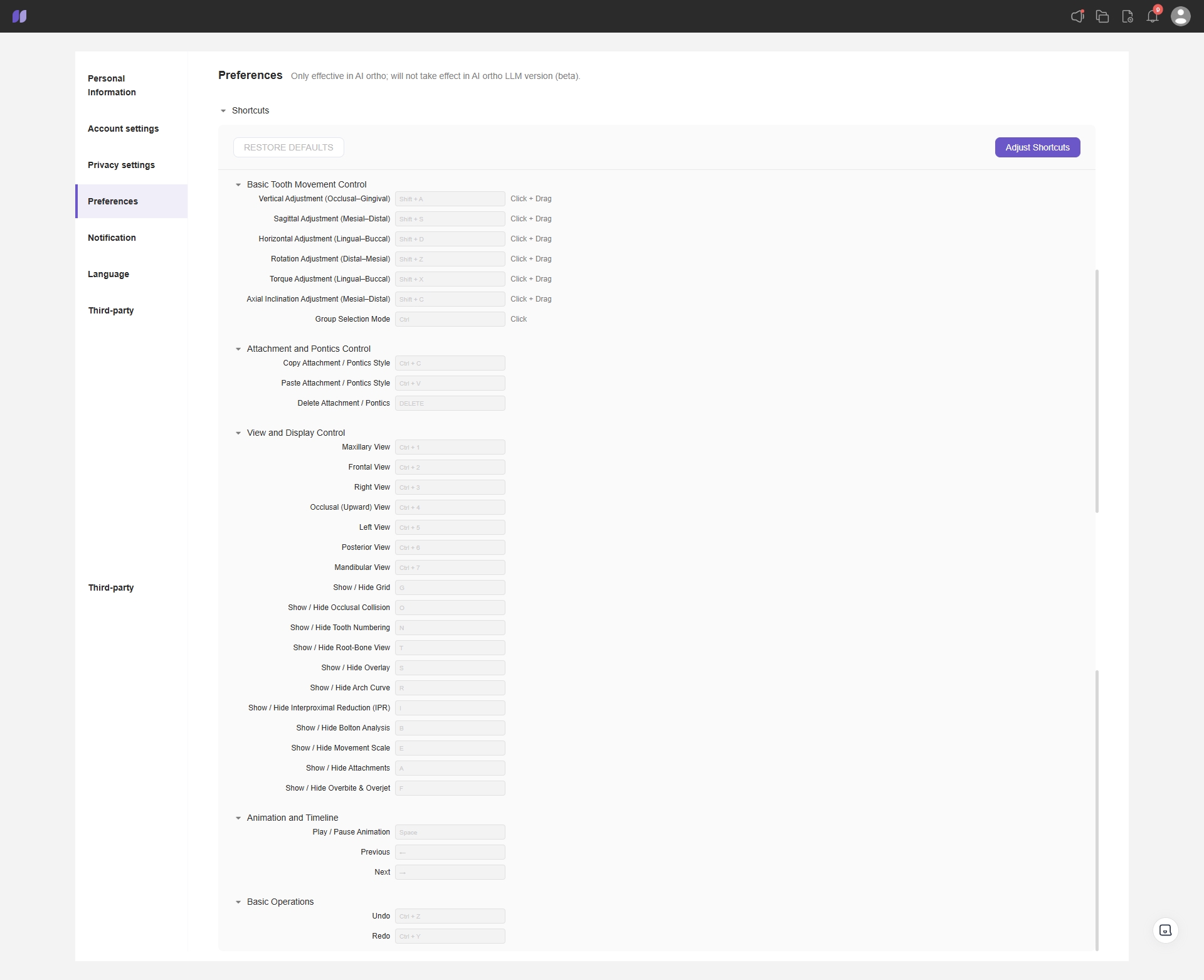
Preferences - Shortcuts

Preferences - Shortcuts

2. Treatment Plan Info sidebar:
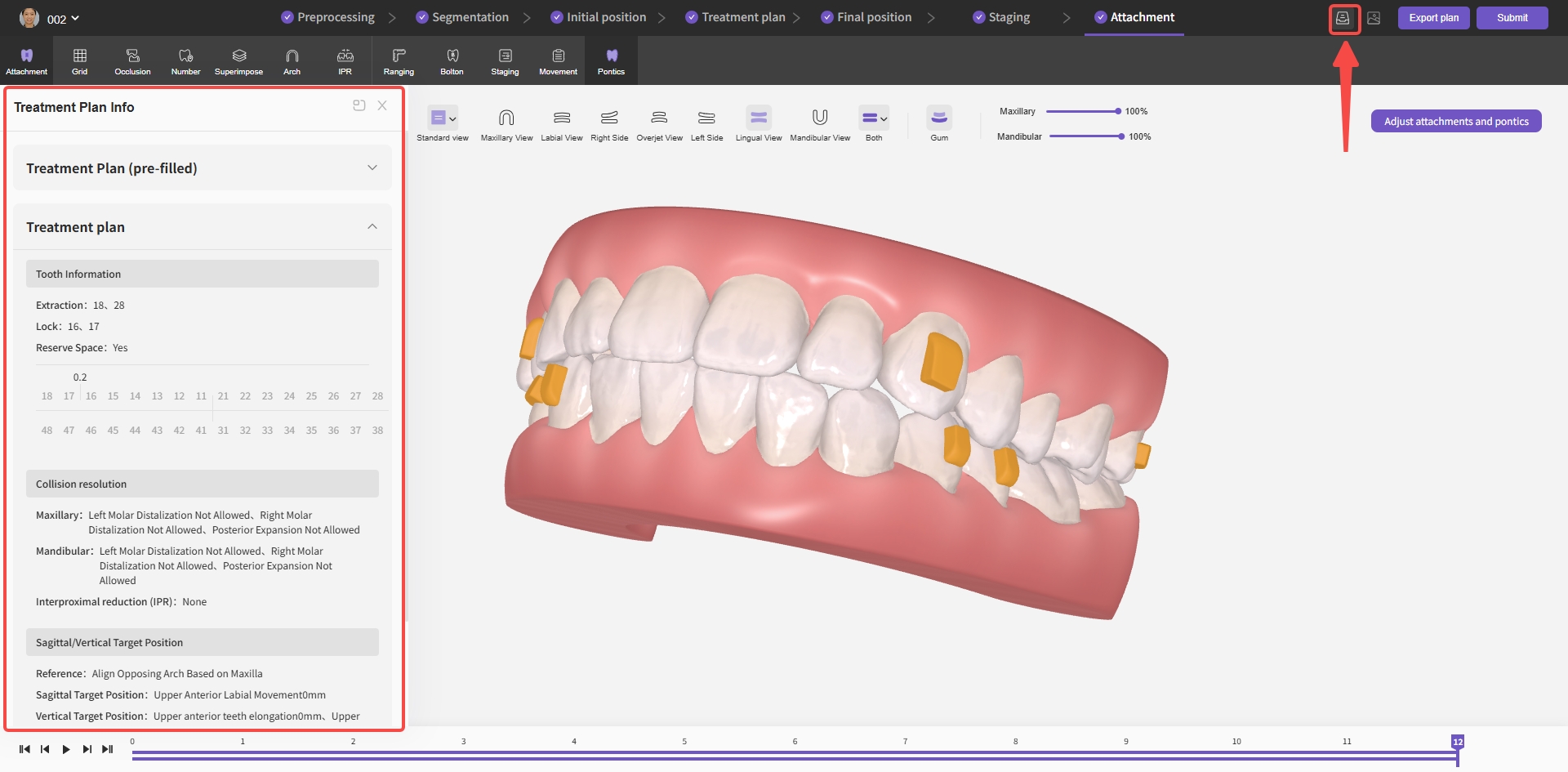
Treatment Plan Sidebar

Treatment Plan Info Sidebar

3. Photo Info sidebar:
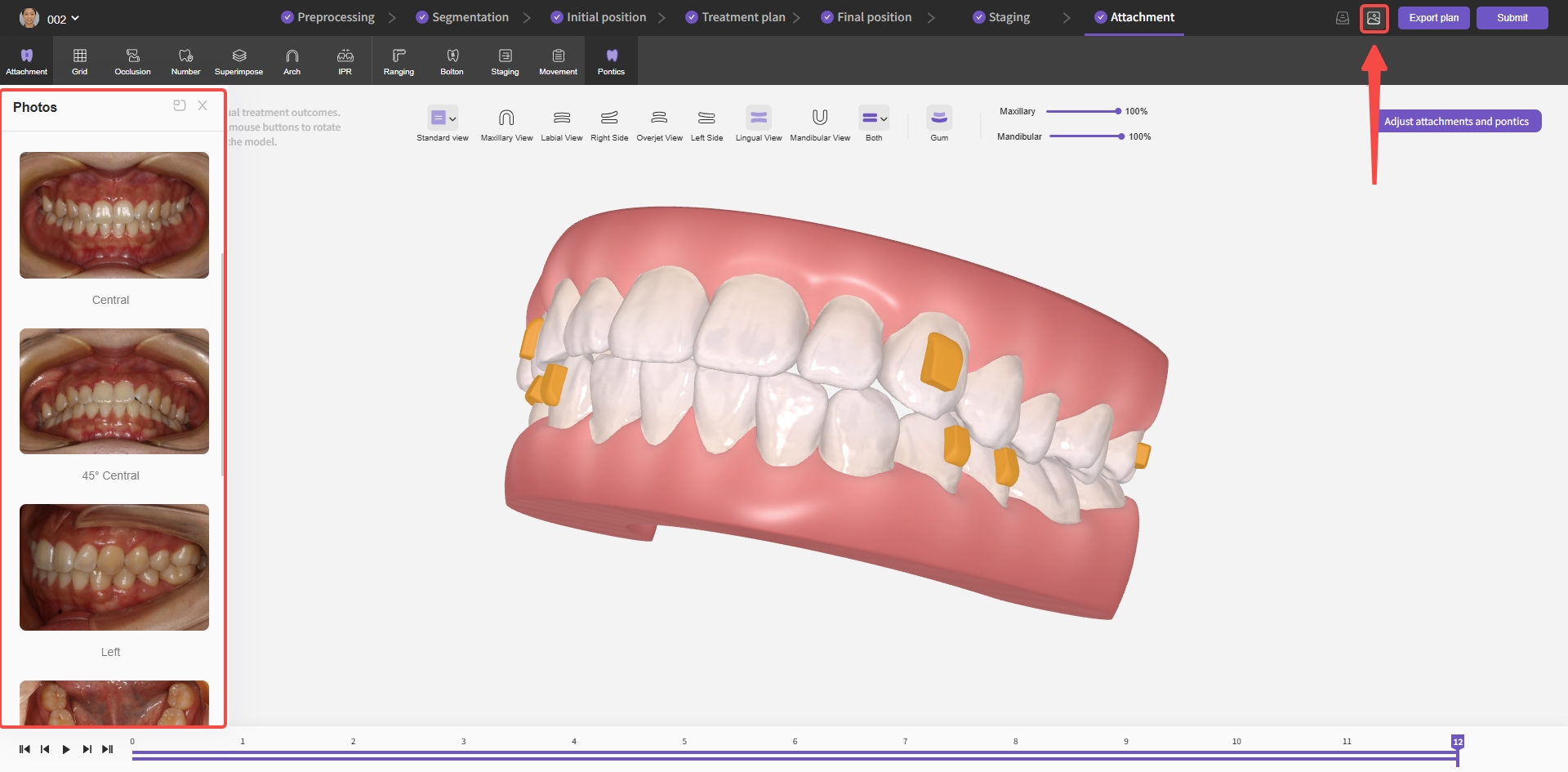
Photo Info Sidebar

Photo Info Sidebar


Export Submission

Overview

Provides multiple export formats, supports generating shareable read-only links, and supports submitting plans to labs for further design and production.

Features

Export Plan

1. Export 3D printing files: download printable jaw model and aligner files. Exported DSG files require LingOral production post-processing software; see the "Post-Processing" section for details.
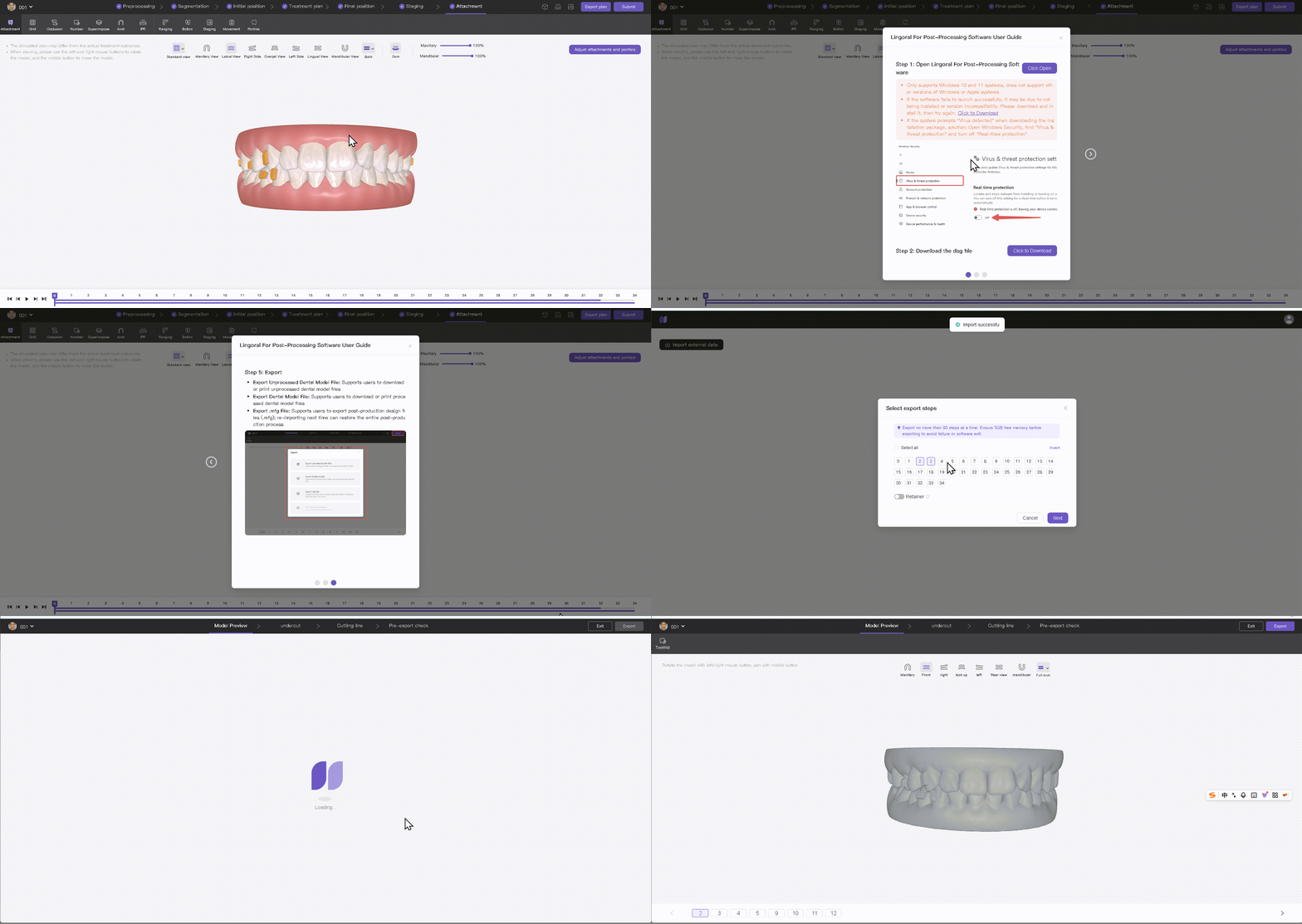
Export - 3D Printing Files

Export - 3D Printing Files

2. Export operation report: users can download standardized diagnostic, production, and execution documents to synchronize information across stakeholders.
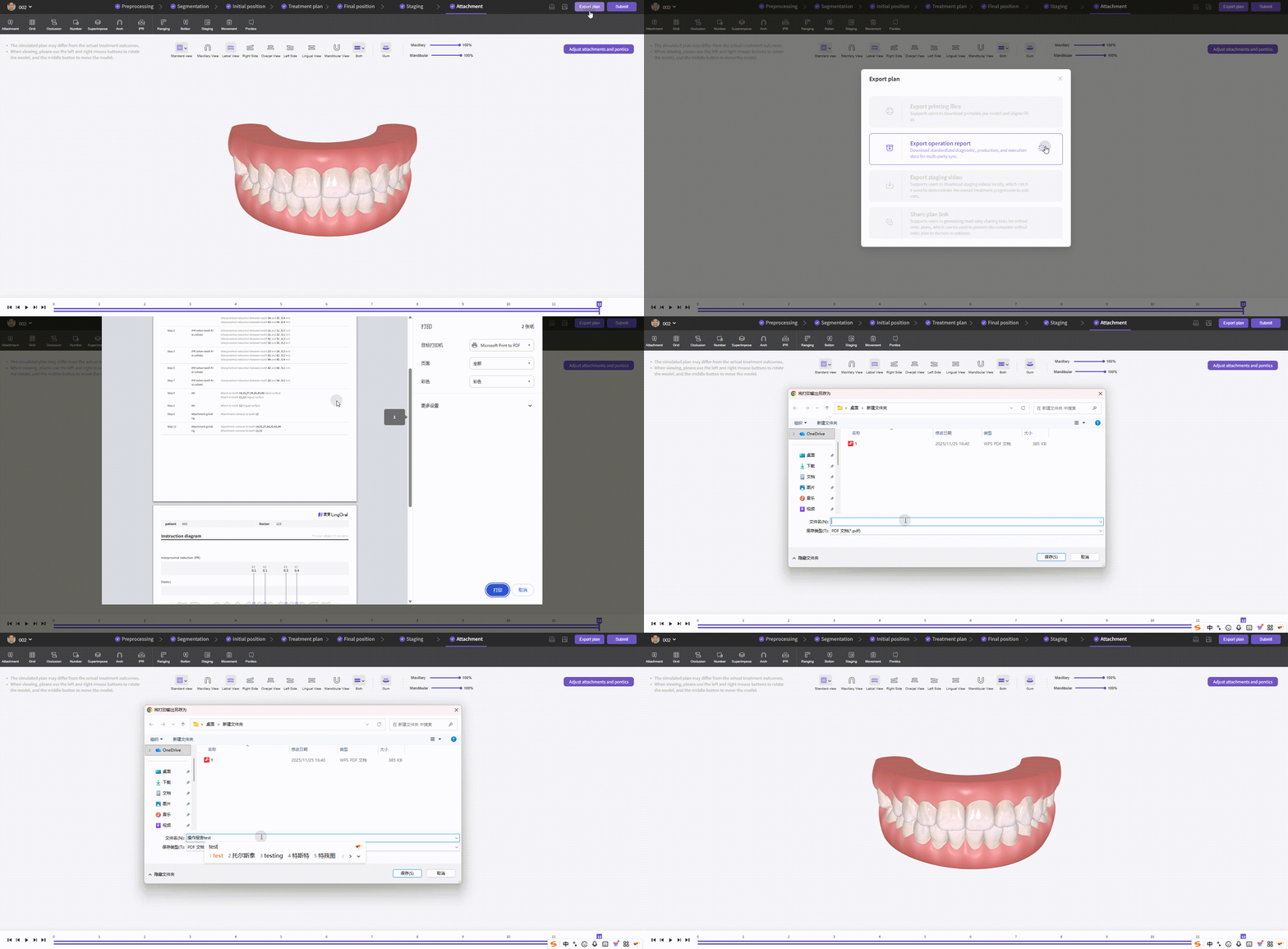
Export - Operation Report

Export - Operation Report

3. Export staging video: users can download staging videos locally to demonstrate overall treatment progression to patients.
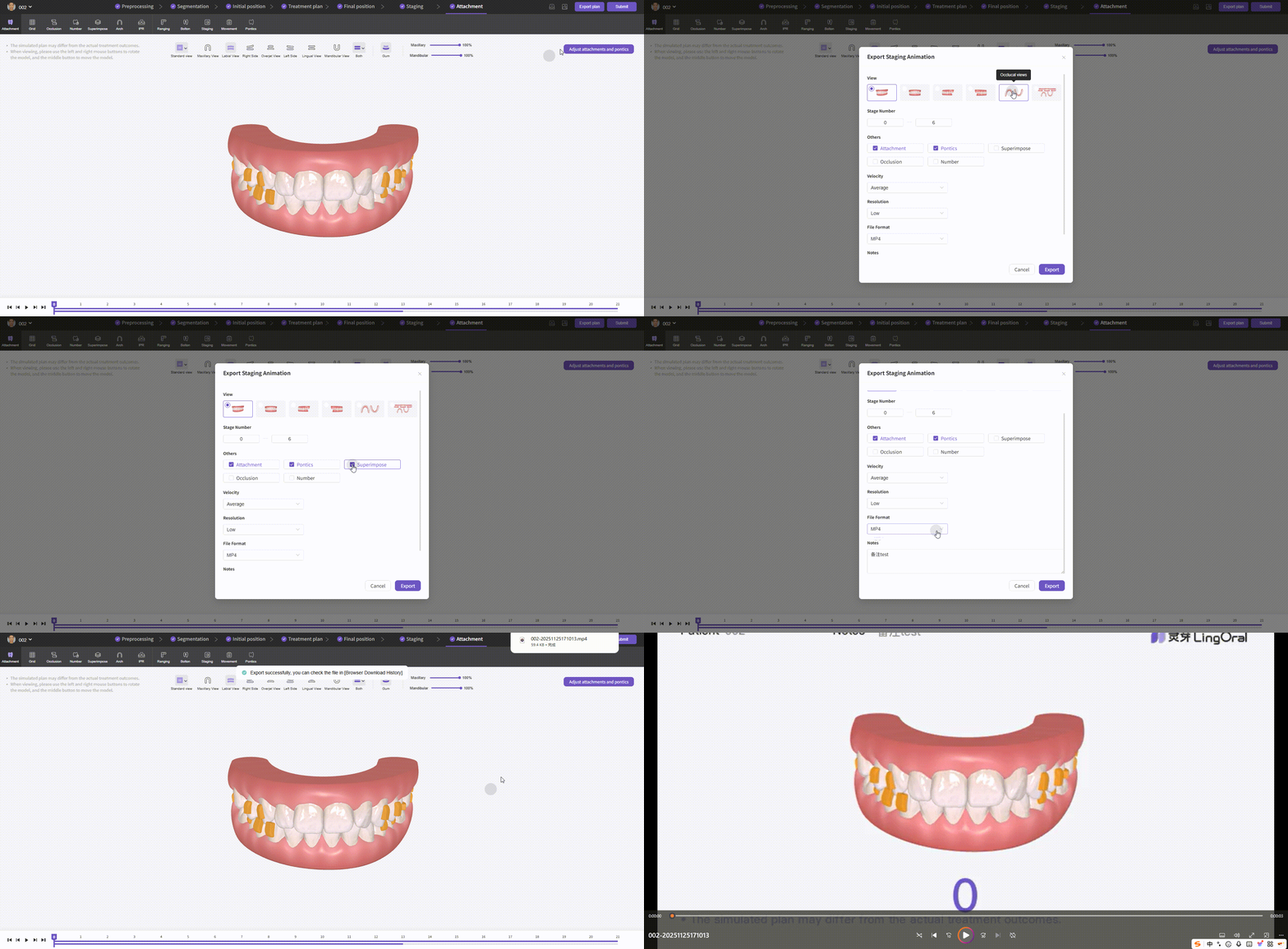
Export - Staging Video

Export - Staging Video

4. Share plan link: Supports generating "Read-only" or "Editable" sharing links for treatment plans. The Read-only mode is ideal for presenting the complete treatment plan to doctors or patients, while the Editable mode allows doctors to make necessary adjustments, enabling seamless and efficient collaboration.
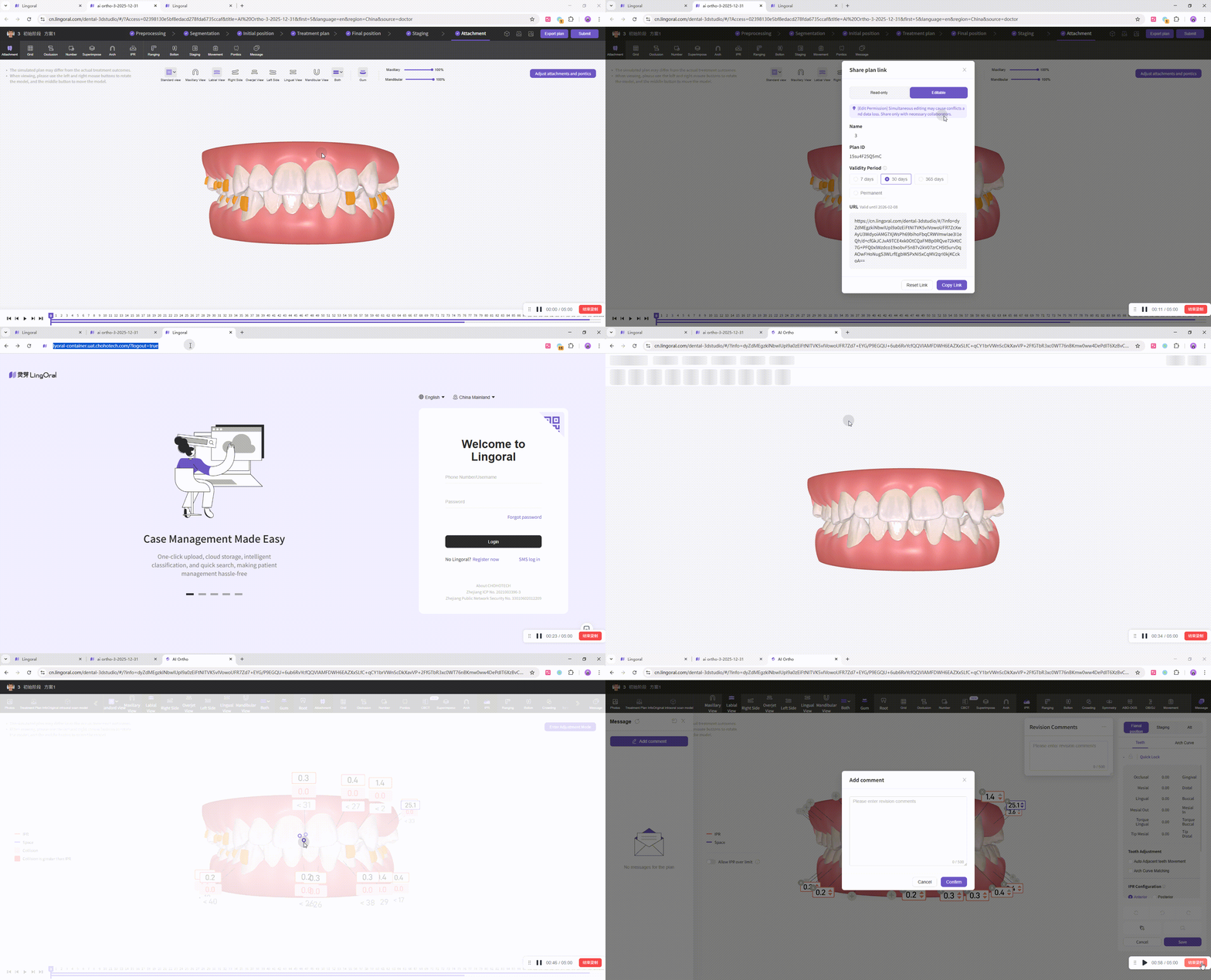
Export - Share Plan Link

Export - Share Plan Link

Submit Plan: supports submitting to a lab for design or production (currently only available for test lab).


Learn more:

iDesign Portal Submission Requirements

How To Use iDesign Portal

Article author: Bright Ark Article published at: May 15, 2026